
Liveview (DCS Olympus)
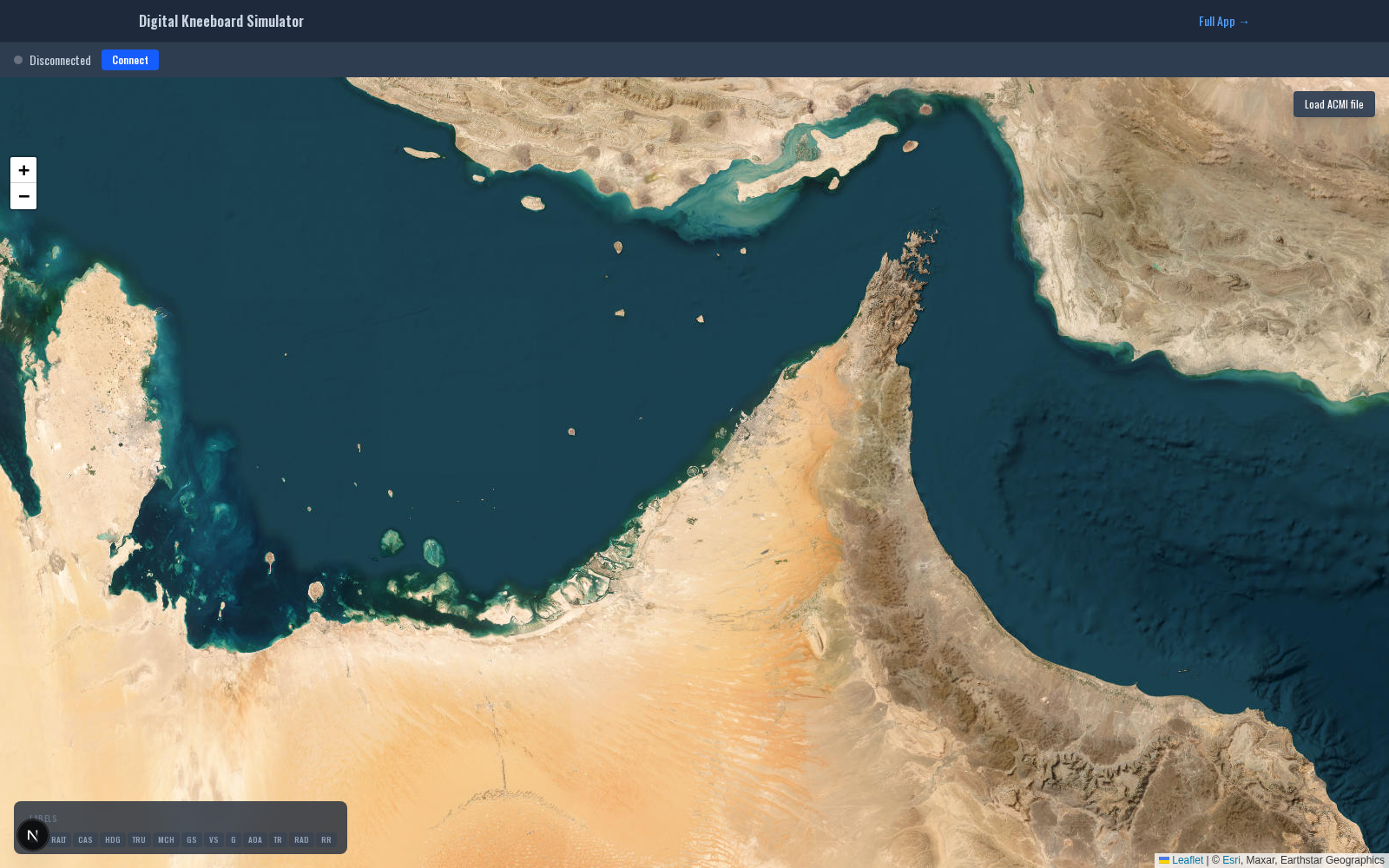
Liveview is a 2D live situational-awareness viewer for DCS missions. It reads from several live data transports and plots the mission state on a tactical map with GCI tracking, a unit detail panel, filters, and an event feed. Liveview is observer only — it never sends commands back to the server regardless of which transport or role you connect with.
Open Liveview by navigating directly to /tools/liveview, or launch it from a configured squadron server entry (see Server Integrations).
Data Sources
Liveview can read from three different transports, selectable from the connection dialog:
- DCS Olympus — One of the formats DKS supports for pulling live mission state. Connects over the standard Olympus API (default port 3001) with a role-based login. DKS only consumes the data stream; it does not use Olympus's command interface.
- Tacview Real-Time Telemetry — Live object positions over the standard Tacview RTT protocol (port 42674). Same transport as Realview but with a 2D map view instead of a 3D replay.
- ACMI playback — Scrub a pre-recorded
.acmifile as if it were live. Useful for practicing GCI calls against a past mission or reviewing without bringing up the full debrief UI.
Olympus Connection
- Click Connect.
- Enter the Olympus host and port.
- Supply a password matching the role you want to log in as.
- Pick your role. Any role works — Liveview reads the mission state the same way regardless of which role you pick, since it never sends commands. Observer is the cleanest pick if your server offers it.
- Leave the username blank to use the role name, or provide one for logging.
- Click Connect.
Saved connections live in your browser's local storage; name them when saving so they're easy to pick next time.
Tacview RTT Connection
Pick Tacview in the connection dialog, enter the server's host and RTT port (default 42674), and optionally a handshake password. The feed is then plotted on the Liveview map the same way Olympus data is.
Features
Liveview's feature surface is focused on live situational awareness:
- Tactical map with units plotted live from whichever transport you connected.
- GCI panel and ribbon with group tracking, BRAA calls, and event annotations.
- Unit detail panel — per-unit inspection when you click a target on the map.
- Live view filters — hide coalitions, aircraft types, or unit categories.
- Event feed — chronological log of kills, launches, and state changes.
- Saved connections — stored in browser local storage.
Squadron Server Integration
If your squadron has a Fox3 or custom server integration configured with Olympus, Liveview can be auto-launched from the squadron server list with credentials pre-filled. DKS mints a single-use launch ticket server-side so the browser never sees the upstream host, port, or password. See Server Integrations for how this is set up.
Liveview vs Realview vs Debrief
Use Debrief for 3D replay and analytics of a finished ACMI file. Use Realview for live 3D replay of a running mission via Tacview RTT. Use Liveview when you want a 2D map view with GCI tools and unit filtering — it speaks Olympus, Tacview RTT, and ACMI playback, all observer-only.