
Debrief & Analytics
The debrief system turns DCS Tacview (ACMI) recordings into a 3D replay plus a library of mission analytics. Upload an ACMI file from any flight and DKS parses it into sorties, weapons engagements, kills, and career statistics.
Opening the Debrief
To access debrief, right-click a design in the sidebar and select Mission → Debrief. If the design has no mission data yet, this opens the Upload Debrief dialog so you can attach an ACMI file. If the design already has at least one mission, it opens the debrief library scoped to that squadron.
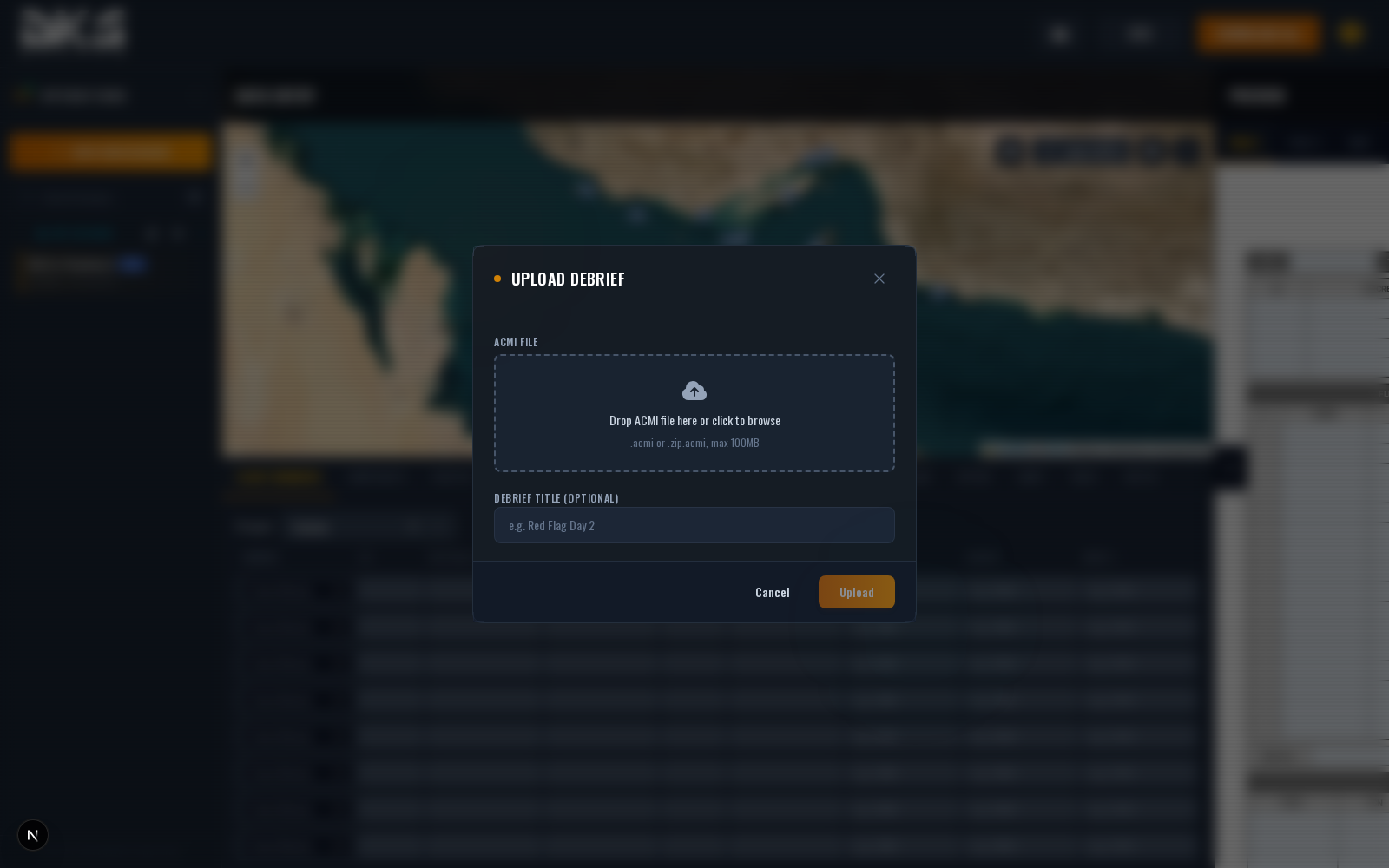
Uploading an ACMI
Drag an .acmi or .zip.acmi file onto the upload area, or click to browse. Give the
sortie an optional title. Once the upload completes, DKS parses the recording into:
- Sorties — one per human pilot aircraft, covering their takeoff → landing cycle.
- Weapon events — launches, impacts, and kill attribution.
- AAR / SAM detections — refueling windows and SAM activations.
BVR analysis is computed on-demand inside the viewer when you select two aircraft — it isn't stored as a parser output.
Parsing runs in a Web Worker so the UI stays responsive. A typical one-hour mission recording parses in roughly 5–30 seconds depending on how busy the recording is.
Opening an ACMI straight from Windows
Install DKS as an app (in Chrome or Edge, open the address bar's Install icon while on
DKS) and the app registers itself as a handler for .acmi files. Right-click any Tacview
recording, choose Open with → Digital Kneeboard Simulator, and the replay opens in the
local viewer with nothing uploaded — no sign-in needed. Tick Always in that dialog if you
want double-click to go to DKS instead of Tacview.
The first time you open a file this way the browser asks once whether DKS may
open .acmi files. Firefox and Safari don't support app file handling, so use
the drop zone at /debrief there.
3D Replay
Click a debrief entry to open the 3D replay. You'll see:
- 3D terrain — Clipmap-based terrain with satellite textures that load as you zoom.
- Entities — Aircraft, weapons, and ground units rendered in 3D with their historical tracks.
- Timeline scrubber — Drag to jump anywhere in the mission. Play/pause/step controls at the bottom.
- Selection bar — Click any entity to select it; select a second to see their relative geometry.
- Object Stats panel — Shows speed, altitude, heading, G-load, and aspect for selected objects.
- Event sidebar — A chronological list of kills, launches, and crashes. Click any event to jump the timeline to that moment.
Safety envelopes
Turn on the SAFE layer and every bomb, rocket and air-to-ground missile burst draws its hazard picture as the replay reaches it:
- A translucent safety envelope grows out of the impact point for 35 seconds — the worst-case reach of the burst — coloured by how far it has spread: grey inside the 10% risk ring, red to the 1% ring, orange to the 0.1% ("danger close") ring, then yellow out to its maximum reach.
- Risk-estimate rings are laid on the terrain as the envelope reaches them, with a yellow ring at the envelope's maximum reach, and stay for a minute.
- A green impact cross marks where the weapon landed for the rest of the replay.
- Any aircraft the envelope reaches — including the one that dropped — lights up with a magenta exposure marker as the front arrives. The weapon's legend lists who was inside and when; select the aircraft to see which bursts reached it.
Select the weapon to see its legend in the Object Stats panel: who dropped it, where and when it hit, the impact dive and speed, the risk-estimate distances and the modelled maximum reach and apex. Weapons without a modelled warhead (most missiles and rockets) show rings and the marker only; anything else air-to-ground gets the marker alone, so no drop goes missing.
Fuze settings. The recording doesn't know what you set on the fuze page, so every bomb starts as the worst case — a contact burst at the shortest arming delay its fuzes allow. The Fuze section of the weapon's legend lets you enter the nose and tail fuze (including a plugged well), the function (contact, airburst, delay or dud), the arming delay and the function delay; an airburst lifts the burst to the fuze's height and widens the rings, a delay is noted in the legend, and a bomb that couldn't have gone off — no fuze that can initiate, or an arming delay longer than its flight — is shown as a dud. Apply to N more copies the setting to the rest of that shooter's ripple. Settings are saved on the recording for the whole squadron.
Arming check. Select a bomb and a faint blue-to-cyan envelope appears at the instant it could first have functioned — release plus arming delay — showing for 20 seconds how far a premature burst would have reached with the bomb's own speed added. The legend's Arming section says whether you'd have been inside it and recommends the shortest arming delay on the fuze's menu that keeps you clear with a second to spare.
Practice bombs. The PRAC toggle under the SAFE layer draws BDU-33s, Mk 76s and their kind as the live bomb they stand in for, with a charcoal impact cross.
The envelope is a notional, worst-case model adapted with permission from Gabykhan's Tacview add-on Fragmentation Envelope. It is for education and situational awareness in the sim only — never for real-world planning.
Views & Camera
| Control | Action |
|---|---|
| 2D / 3D toggle | Switch between top-down map and 3D terrain view |
| Dogfight cam | Auto-frame two selected entities relative to each other |
| FPV mode | Ride a selected aircraft from its cockpit perspective |
| Yardstick | Overlay a range/bearing readout between two selections |
| Control zone | Render a tactical cone or range volume around a selection |
BVR Analysis
When two aircraft are selected, the selection bar can display BVR analysis:
- Launch range — Distance at missile launch.
- Target aspect — The defender's aspect angle at launch.
- Guidance phases — Any SARH/ARH phase transitions during time-of-flight.
- Impact — Terminal geometry and outcome.
BVR analysis is not restricted to a fixed weapon list — it's computed from the ACMI's weapon tracks whenever the geometry is available.
Sorties & Stats
Every ACMI parses into one or more sorties — one per human pilot aircraft, covering spawn/takeoff through landing or despawn. Each sortie records aircraft type, times, weapon events, and kill/death attribution.
Sorties feed into career stats automatically on upload. DKS resolves pilots by callsign / display name via the squadron's pilot alias registry — new aliases are auto-created the first time a pilot shows up in a recording, so career tracking "just works" without a manual linking step.
Audio Sync
Audio is attached after the ACMI has been parsed — open the debrief in the 3D replay view and click the audio button in the bottom-right of the player to start the attach flow. Once you've uploaded your radio recording, DKS transcribes it and syncs the transcript to the mission timeline. The transcript appears overlaid on the replay and you can click any utterance to jump to that moment.
Audio transcription uses Whisper and runs asynchronously — the transcript appears in the replay once processing completes.
Realview (Live Tacview)
For live telemetry (no recording needed), use Realview to connect directly to a running DCS server's Tacview Real-Time Telemetry stream. Realview uses the same 3D replay engine, but against live data instead of a file.