
Briefings
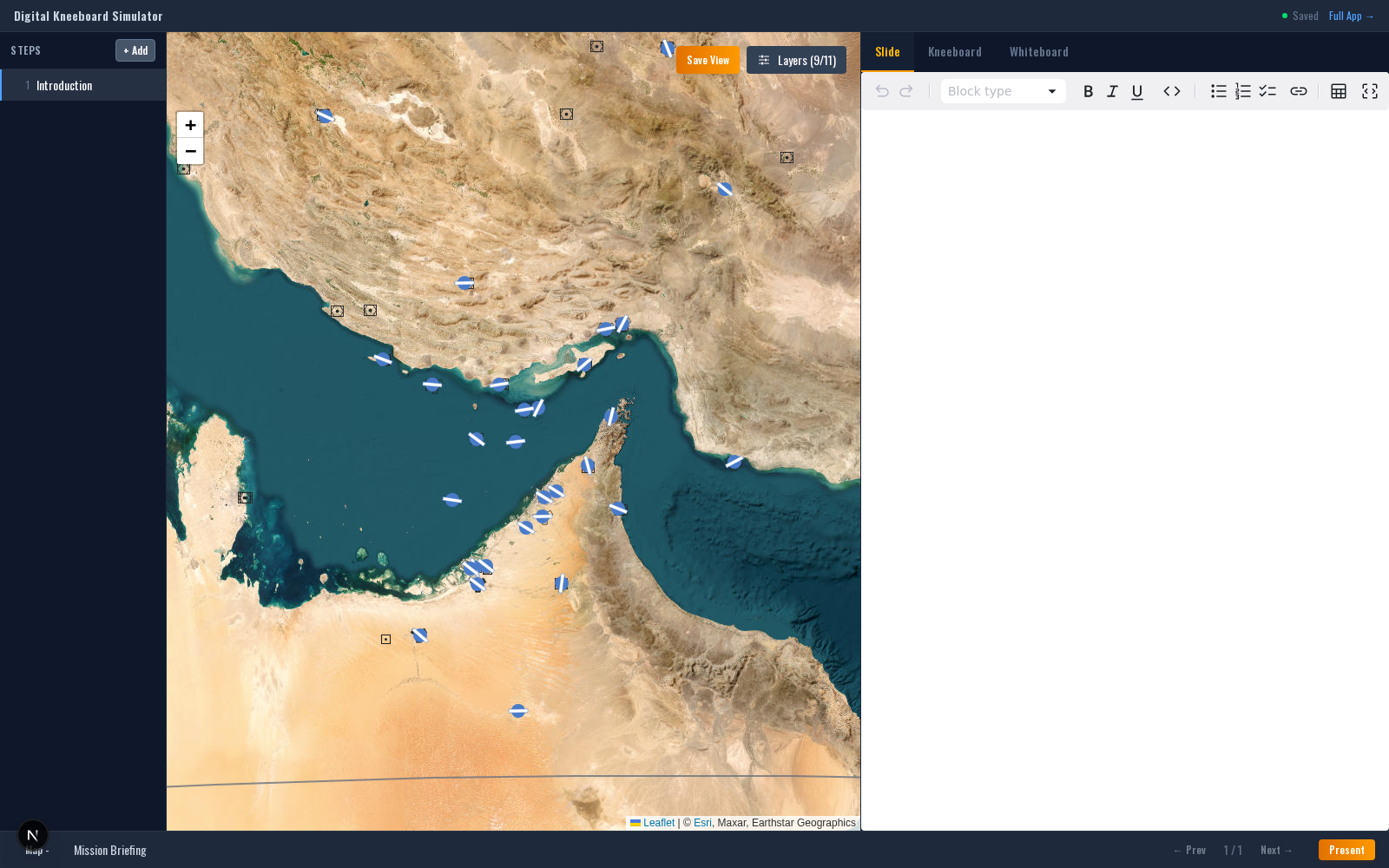
Briefings are step-based mission briefings you can build alongside a kneeboard design and present to your squadron before takeoff. Each step can include freehand notes, a map view, and an Excalidraw whiteboard for annotations.
Creating a Briefing
Right-click a design in the sidebar and select Mission → Briefing. A briefing is
linked to a specific design and inherits its waypoints, OPFOR, and support data
automatically. The briefing editor opens in a new browser tab at
/briefing/{id}. You can have multiple briefings attached to a single design (e.g.
pre-mission and debrief walkthroughs) — each gets its own URL.
Steps
A briefing is a linear sequence of steps. Each step stores:
- Title — e.g. "Mission Overview", "Ingress Route", "Target Area".
- Slide content — Markdown text rendered as the briefing slide. Supports formatting, images, and links.
- Map state — The map center, zoom, and saved layer toggles for that step.
- Whiteboard — A per-step Excalidraw canvas for drawing attack axes, threat sectors, or freehand notes.
- Selected flight (package master briefings only) — Which flight's perspective the step presents.
Step views split across three tabs per step: Slide, Kneeboard, and Whiteboard.
Whiteboard
The whiteboard is an Excalidraw canvas — use the toolbox for shapes, arrows, text, and freehand drawings. A briefing has both per-step whiteboards (scoped to a single step) and a global whiteboard that persists across every step.
Map State
Each step remembers its own map center, zoom, and layer toggles. The briefing map reads the source design's data whenever you open the briefing, so waypoints, overlays, and support assets reflect the current design state. Map edits made after opening the briefing are picked up next time you open it.
Presentation Mode
Click Present (or press Ctrl/Cmd + P) to enter presentation mode. The step sidebar hides and the slide / kneeboard / whiteboard area takes the full screen. Keyboard shortcuts:
- Arrow Right / Arrow Down — Next step
- Arrow Left / Arrow Up — Previous step
- Ctrl/Cmd + P — Toggle present mode
- Esc — Exit present mode
Sharing
Briefings are tied to their source design and reached via /briefing/{id}. A design
can have many briefings (pre-mission, mid-mission review, debrief walkthrough) —
create each one from the design's right-click Mission submenu.