
Realview (Live Tacview)
Realview is a live Tacview viewer that connects directly to a running DCS server's Real-Time Telemetry stream. It uses the same 3D replay engine as Debrief, but against live data — you can watch a mission unfold in real time, scrub back through the last few minutes, and jump to the live edge at any time.
Open Realview by navigating directly to /tools/realview, or launch it from a configured squadron server entry (see Server Integrations).
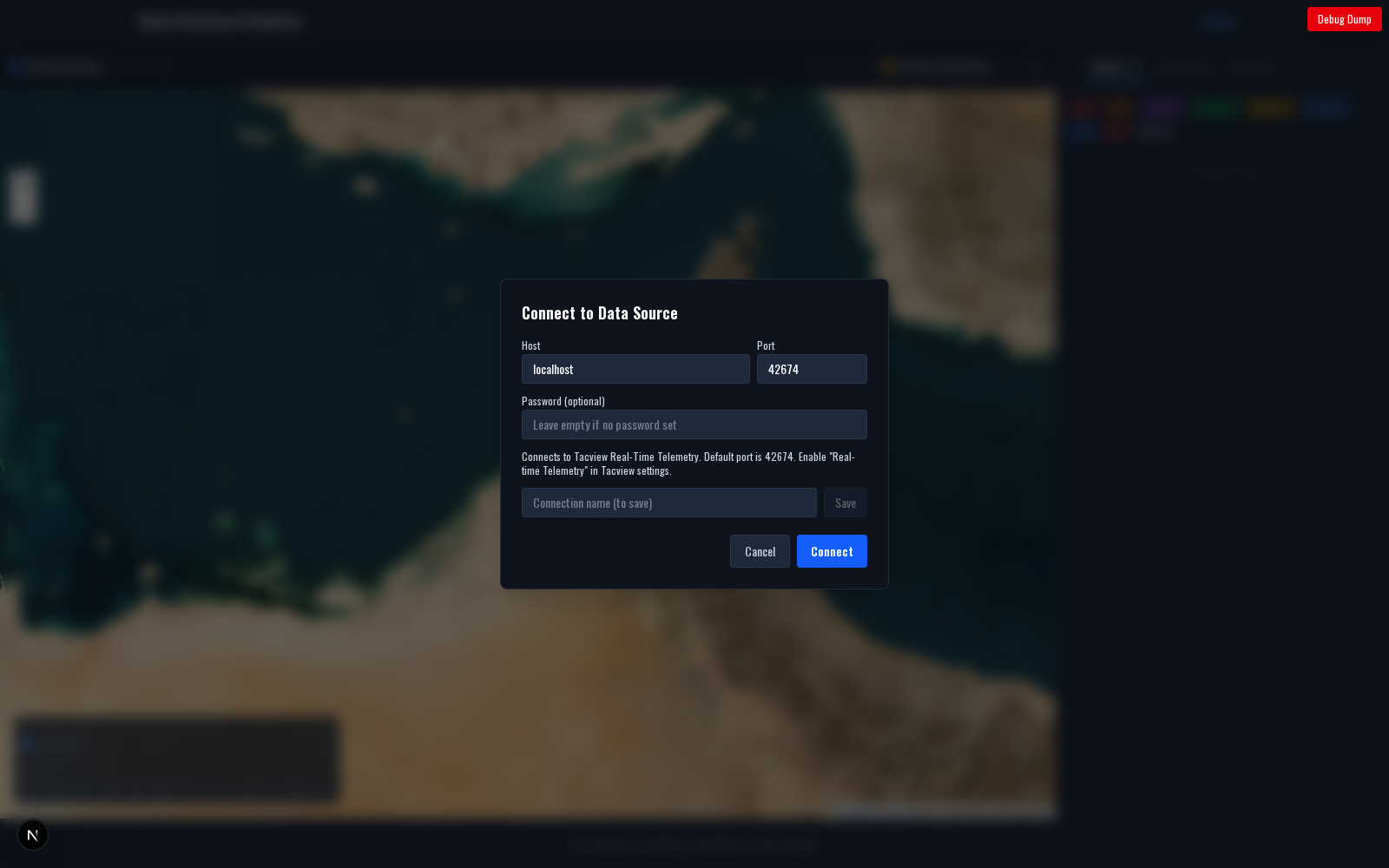
Connecting
- Click Connect in the top left.
- Enter the host and port of the DCS server running Tacview Real-Time Telemetry (default port is 42674).
- Optionally enter a handshake password if the server is configured to require one.
- Click Connect.
On success the 3D view populates with the current state of the mission and starts tracking new updates as they stream in. The timeline grows as data arrives; the scrubber lets you rewind through the buffered history.
Saved Connections
The connection dialog remembers recently-used endpoints in your browser's local storage. Give a connection a name when saving and it reappears in the dialog next time.
Squadron Server Integration
If your squadron has a Fox3 or custom server integration configured, Realview can auto-launch with the server's hostname, port, and password pre-filled. Open it via the squadron server list in squadron settings — no manual config needed. See the Server Integrations page for setup.
Features
Realview reuses the full Debrief feature set:
- 2D and 3D views with full terrain
- Selection bar with aspect, range, and closure
- Object stats panel with speed, altitude, heading, G-load
- Dogfight cam, FPV mode, and yardstick overlay
- LSO PLAT cam on any carrier, which in Realview always watches the live edge and moves smoothly between telemetry updates
- Control zones for tactical cones and ranges
- Event sidebar with kill, launch, and crash events
The key differences from offline debrief are:
- No audio or transcript — Realview is live-only, not tied to a recording.
- No file upload — Data comes from the telemetry stream directly.
- Timeline is live — It grows as data arrives and you can jump to the live edge.
Realview keeps roughly the last two minutes of per-entity position history in memory so you can scrub back. For longer history, record an ACMI file and use Debrief instead.
Enabling RTT on Your DCS Server
Tacview Real-Time Telemetry must be explicitly enabled in the DCS server's Tacview configuration. In Tacview's settings, enable Real-time Telemetry and pick a port (42674 is the default). Firewall the port appropriately so only authorized clients can connect.
If you have a Fox3 hosting account, RTT can be toggled on/off for the next mission via the squadron's server integration panel — no direct server access required.