
Server Integrations
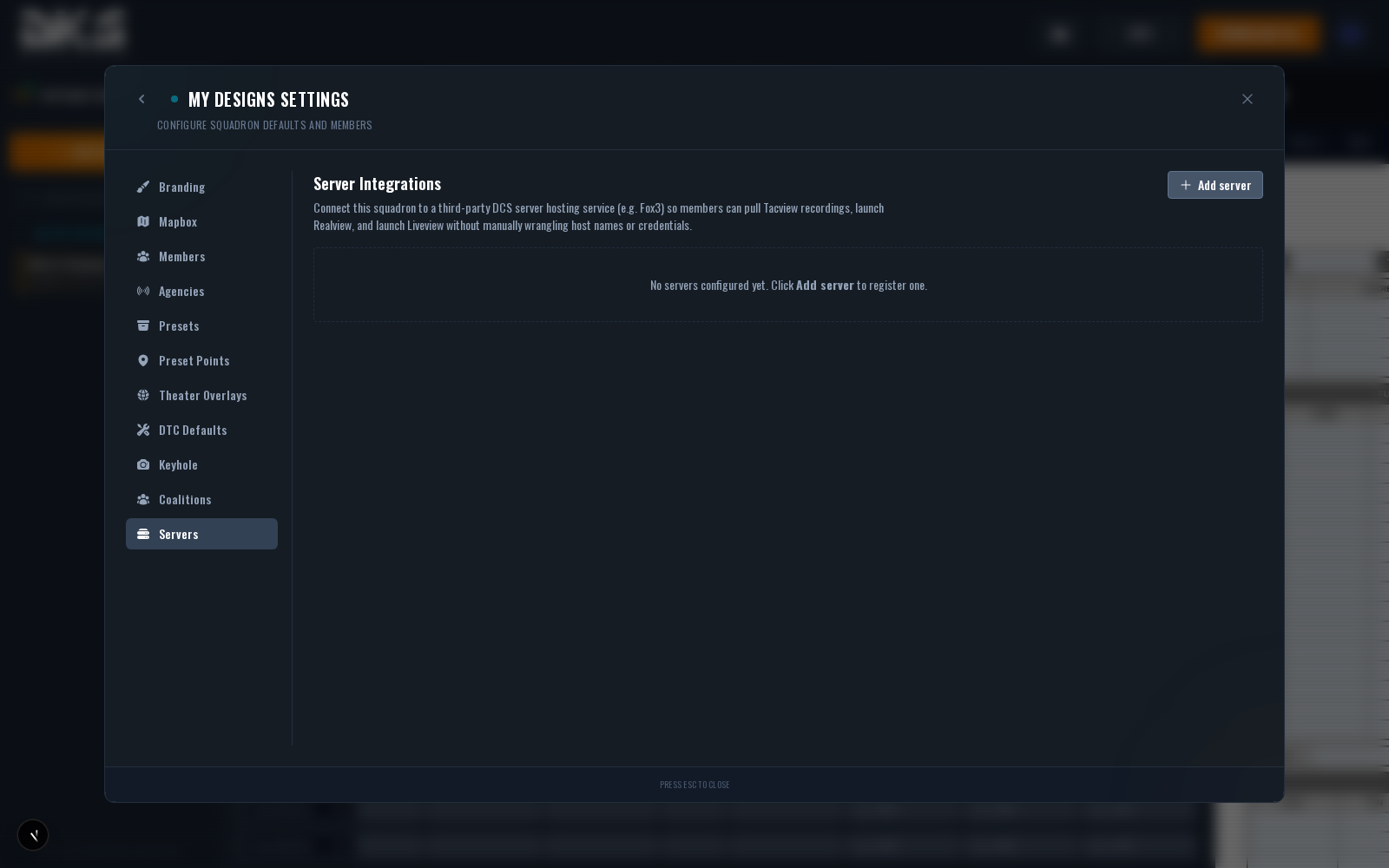
Server integrations connect your squadron to a third-party DCS server host (Fox3, or a custom server you operate yourself) so members can pull Tacview recordings and launch Realview and Liveview with one click — all without wrangling credentials by hand.
Providers
DKS currently supports two provider types:
- Fox3 — fox3cloud.com, a managed DCS hosting service. Fox3 exposes APIs for Tacview downloads, RTT control, and Olympus launch. Squadron admins authenticate once with an API token; all members then inherit access via the squadron integration.
- Custom — Any DCS server you operate. Configure Olympus and/or Tacview RTT endpoints directly. Use this if you self-host and want to make your server reachable from DKS without exposing it publicly.
Adding a Server
Open Squadron Settings → Server Integrations and click Add server. Pick a provider from the dropdown; the form adapts to the provider.
Fox3
- Pick Fox3 in the provider dropdown.
- Enter a display name for the server ("Friday Night Ops").
- Enter the Server ID — Fox3 provides this alongside your API token.
- Paste your API token — Fox3 support issues these manually; contact
support@fox3cloud.comto request one. - Click Add server. DKS runs an immediate health check and populates capability icons showing which features the server supports.
Custom
- Pick Custom in the provider dropdown.
- Enter a display name.
- Olympus section — Configure host, port, username, password, and role if you want DKS to launch Liveview against this server.
- Tacview RTT section — Configure host, port, and optional handshake password if you want Realview support.
- Save. At least one of Olympus or Tacview RTT must be configured.
Capabilities
Each server shows a row of capability icons reflecting what the provider supports:
- Tacview — Browse and download recordings from the server
- Realview — Launch Realview with the server's Tacview RTT pre-filled
- Liveview — Launch Liveview with the server's Olympus pre-filled
Fox3 supports all three. Custom servers support only what you configure.
Testing a Connection
Click the Test button on a server entry to run a health check immediately. The pill
next to the server name shows ok on success or an error state with the specific failure
(credentials, network, capability mismatch). Test is safe to run at any time — it only
pings the server's health endpoint.
Realtime Telemetry Toggle (Fox3)
Fox3 servers expose an RTT toggle in the server panel — request enable/disable of Tacview Real-Time Telemetry for the next mission restart. Fox3 queues the change server-side so it takes effect the next time the host reloads the mission. The RTT status pill tells you the current state.
Credentials & Security
All provider credentials (API tokens, Olympus passwords, Tacview handshake passwords) are encrypted at rest using AES-256-GCM with a squadron-specific key. The plaintext never leaves the server and is never sent back to the browser. The only time credentials are decrypted is when DKS needs to make an outbound request to the provider on the squadron's behalf.
Only squadron admins and owners can add, edit, or remove server integrations. All members can use them (list Tacview files, launch Realview/Liveview).