
Squadron Settings
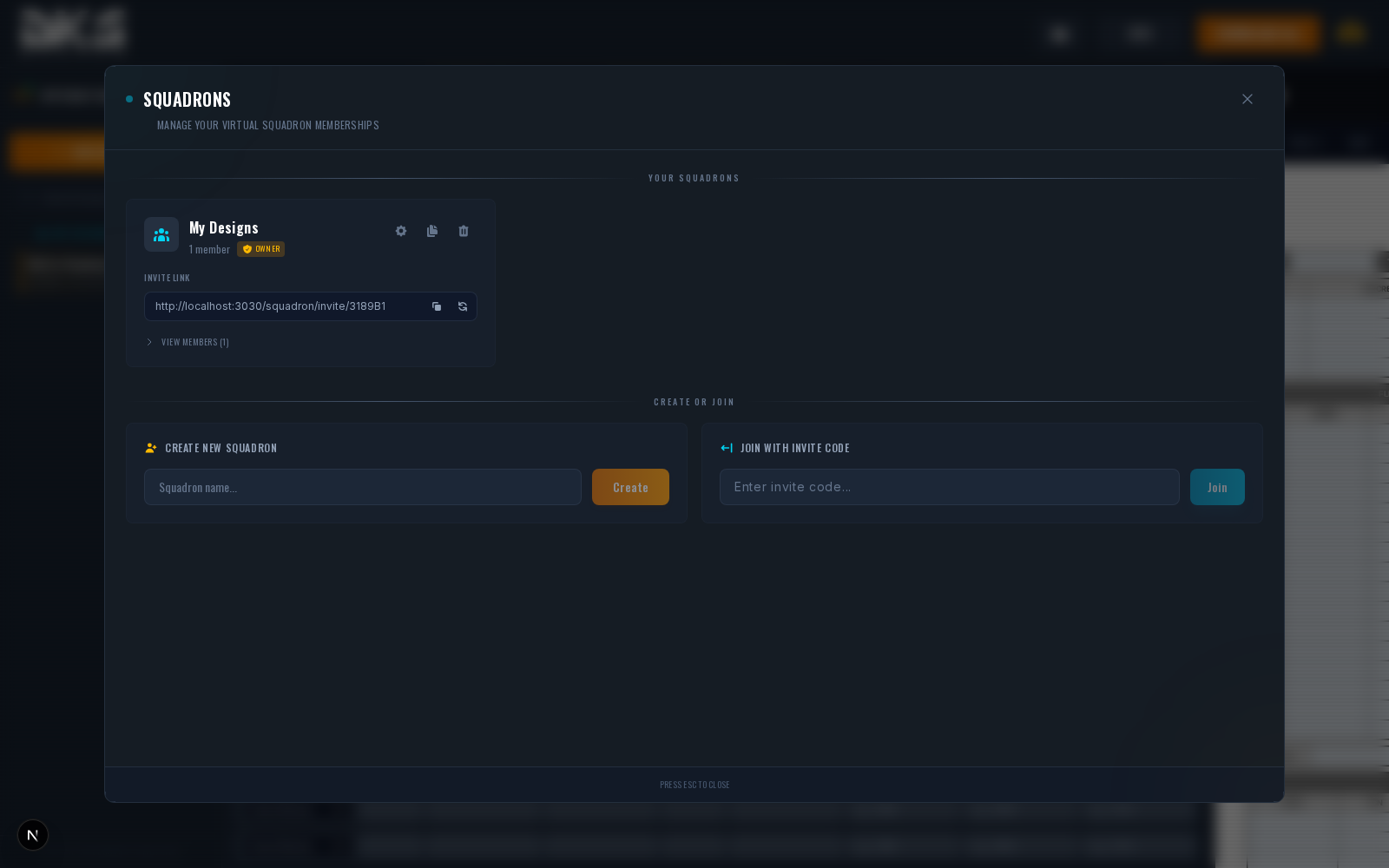
Squadrons let groups of pilots share resources — presets, agencies, threat overlays, and DTC defaults. Access squadron settings by clicking the squadron button in the top navigation bar, then the gear icon on a squadron card.
Creating & Joining
- Create — Click "Create Squadron" and enter a name. You become the owner.
- Join — Enter a 6-character invite code provided by an existing member. Squadrons default to a 50-member cap.
Invite codes are permanent until an owner or admin regenerates them, which creates a new code and invalidates the old one.
Roles & Permissions
Every member has one of four roles:
| Role | Can Edit Settings | Can Edit Content | Can Remove Members |
|---|---|---|---|
| Owner | Yes | Yes | Yes (all) |
| Admin | Yes | Yes | Yes (editors & viewers) |
| Editor | No | Yes | No |
| Viewer | No | No | No |
"Content" includes designs, presets, agencies, and theater overlays. Only the owner can delete the squadron.
Settings Sections
The settings panel has a sidebar with the following sections:
Branding
- Squadron Name — Rename the squadron.
- Default Watermark — Set a watermark image that applies to all members' kneeboard exports by default. You can either paste an HTTPS URL or click Upload to upload a file directly. Accepted formats are PNG, JPEG, and WebP, up to 2 MB. Members can override the squadron watermark on individual designs.
Standards
The numbers your squadron owns, set once so every new kneeboard starts there.
-
Doghouse Layout — Choose which values the route doghouses carry and in what order. The first row renders inside the triangle at the top; drag rows to reorder, and use the + and × buttons to add or remove them. Available rows are magnetic heading, true heading, leg distance, leg time, total elapsed time, altitude, speed, and waypoint name (the waypoint's short name if it has one, otherwise its description, capped at 8 characters).
The layout is stamped onto a kneeboard when it is created, so changing the standard never reformats a kneeboard someone has already exported. Members can still override the layout for a single design under Design Settings → Doghouse Options. The standard applies to the full pentagon doghouse style — the simple arrow banner keeps its fixed heading-and-distance format.
-
Overhead Break — What a good pattern looks like in your squadron. Click any number on the pattern diagram to set what Excellent, Good and Fair mean for it. Set values for All airframes, or pick a jet to tune it on its own — a per-airframe value wins over the all-airframes one. Debriefs re-grade against your numbers, including missions already flown.
The pattern-altitude band also widens or narrows the window the detector uses to recognise a pattern at all, so a squadron flying a lower pattern still gets its breaks detected instead of an empty tab.
-
Formation Definitions — The positions your squadron briefs. Each one owns its own wedge (how far aft of the lead's nose it sits) and its own range band, and you can rename it to whatever your squadron calls it. Pick All airframes or a single jet — a Viper four-ship and a Huey pair need not fly the same numbers or use the same words.
Debriefs name a wingman's position against these, so if a flight briefs something different on the day, just ignore the detector for that flight. Positions may overlap; where they do, a debrief picks whichever one the wingman sits deepest inside, so the timeline settles instead of flipping between two equally-correct names. If an edit leaves geometry no position covers, the panel says so — a wingman there is reported as out of position rather than given a name.
Nothing may reach forward of the 3/9 line or past 5 NM, which is the range the flight detector pairs two aircraft at. Moving a position's outer edge also changes what counts as a completed rejoin.
-
Fuel — The fuel numbers your squadron briefs. Set the landing minimum, what a carrier pass costs, the Joker buffer above Bingo, the min and emergency fuel you print, the max-endurance burn a fuel ladder counts in, and how fuel displays (thousands, pounds or kilograms). Pick All airframes or a single jet; the greyed value in each box is what that jet resolves to right now and where the number came from — your squadron, the airframe's default, or the burn model's proposal. Your number always wins.
Unlike the doghouse layout these are read live: BINGO, JOKER and the fuel floor on every kneeboard follow the current standard the next time it renders, and a pilot can still type their own landing minimum on one flight's Misc tab.
Mapbox
Configure a shared Mapbox API key for high-resolution satellite map tiles. The key must be a
public token (starts with pk.). A 31-day usage chart tracks tile consumption across all
members.
Members
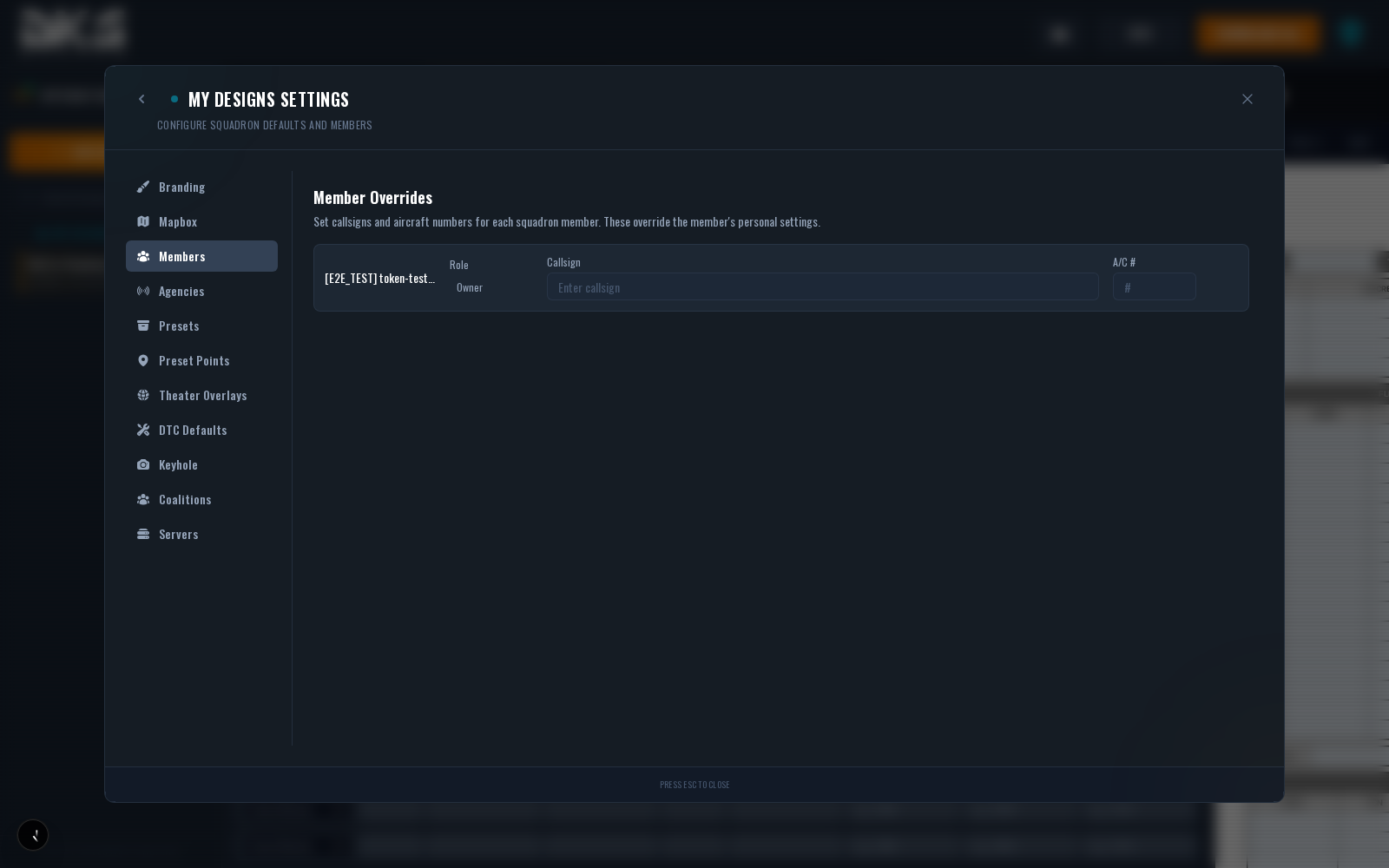
Lists all members with per-member override fields:
| Field | Description | Example |
|---|---|---|
| Callsign | Override this member's callsign within the squadron. Takes priority over their personal callsign. | Jester |
| Aircraft # | Override this member's aircraft number. Takes priority over their personal setting. | 2 |
| Role | Assign a role (Owner, Admin, Editor, Viewer). You can only assign roles below your own. | Editor |
Admins and owners can remove members or change roles. You can only assign roles below your own — admins cannot promote anyone to owner or admin.
Agencies
A shared library of radio agencies and frequencies that feed the Comm Plan autocomplete for every squadron design. The section is a flat table with a theater filter at the top and inline editing — edit any cell and click elsewhere (or press Enter) to save. The required fields are Name and Frequency; everything else is optional.
| Field | Description | Example |
|---|---|---|
| Name | Full agency name. Required. | Magic |
| Frequency | Any string the comm plan will render verbatim. Required. | 251.000 |
| Shortname | Up to 7 characters, auto-uppercased. Used in tight kneeboard cells. | MAGIC |
| Theater | Restricts the agency to a specific DCS theater, or leave as **All** to make it universal. | Persian Gulf |
| Description | Optional free-text note shown in tooltips and pickers. | E-3 AWACS |
Features:
- Theater filter — Dropdown at the top of the table narrows the list to one theater. Universal ("All") agencies still show up inside every theater filter.
- Add Agency — Inserts a blank row at the top; press Enter to commit or Escape to cancel.
- Delete — Hover a row to reveal the trash icon.
- Import / Export — Click Import/Export to expand the panel. Export JSON downloads a dated
agencies-YYYY-MM-DD.jsondump. Import JSON takes a JSON file in the same shape and offers two modes:- Merge — Adds the imported agencies to your existing list.
- Replace All — Deletes every existing agency and replaces with the file contents, after a confirmation prompt.
- Format help — Click to open the JSON format reference inside the import/export panel.
See the Comm Plan section for how agencies are surfaced when filling in a design.
Presets
Squadron-wide presets for any data tab — flight members, comm plans, loadouts, waypoints, home plate, support, range plans, and misc. These are available to all members when loading presets. Presets can be duplicated between squadrons.
Preset Points
A named coordinate library for commonly referenced locations (airfields, ranges, landmarks). Points can be entered manually or imported via CSV. Elevation lookup is available through the integrated elevation service. Points are automatically grouped by theater based on their coordinates.
Theater Overlays
Theater overlays are reusable libraries of threats, targets, ground units, friendly air defense, support assets, and map drawings that any design in the same theater can opt into. A squadron can keep as many overlays per theater as it wants — e.g. "SAM belt v1", "Night defensive posture", "Red CAP stations" — and each design picks which ones to enable and which items inside those overlays should actually apply.
Overlays are not automatic. Creating an overlay here just makes it available — you still need to enable it on each design from Design Settings → Overlays and then pick which items to activate in the OpFor tab. See Theater Overlays for the full per-design workflow.
The section is a two-pane layout:
Sidebar (left) — Theater selector, New Overlay button, and the list of overlays in the currently selected theater. Each row shows the overlay name, a threat count, a target count, and a grid icon if the overlay has a drawing grid attached. Hover any row to reveal a Duplicate button that clones the overlay (including all its contents) into a new name.
Editor (right) — Selecting an overlay opens the editor:
- Header — Overlay name, description, and a Grid Active badge if drawings are attached. Action buttons: Learn more (format help), Export JSON, Import MIZ, Import JSON, Edit (rename / change description), and Delete (with a confirmation prompt).
- Embedded tactical map — Drop threats, targets, ground units, friendly AD, and support assets (tankers, AWACS, carriers) straight onto the theater map. Drag markers to reposition. The map is in OpFor-editor mode, so waypoint and control-measure interactions are disabled.
- Save Changes — The editor works on a local draft. The top of the save bar shows ⚠ Unsaved changes or ✓ All changes saved; click Save Changes to commit adds, edits, and deletes to the database in one pass.
- Editor panels (below the map) — Per-entity forms with full fields for Threats, Targets, Ground Units, Friendly AD, and Support Assets. A coordinate format switcher controls how lat/lon are displayed across the panels.
Imports:
- Import MIZ — Parse a DCS
.mizmission file and pull out threats, targets, drawings, ground units, friendly AD, and support assets into the current overlay. A dialog lets you pick which categories to import and whether to replace or merge with existing content. - Import JSON — Same flow for a previously-exported overlay JSON.
- Export JSON — Downloads the currently selected overlay as
{name}-overlay.jsonfor backup or sharing.
See the OpFor section for how overlays show up on the design side.
DTC Defaults
Aircraft-specific defaults applied to all squadron members' DTC exports. Pick an aircraft in the top selector, then a system tab:
- F-16C — MFD, CMS, ELINT, HARM, HTS. Configure MFD page layouts, CMDS programs (chaff/flare bingo, burst quantities, burst intervals, salvo quantities, salvo intervals), ELINT/RWR threat tables, HARM targeting tables, and HTS threat class settings.
- F/A-18C — CMDS, RWR, FCR, HMD. Configure CMDS programs, RWR threat tables, FCR radar defaults, and HMD settings.
- OH-58D — Laser Codes. Eight default laser code slots used as the squadron-wide default for members who haven't set their own.
- Global — "Load Joker as Bingo" toggle (applies the Joker fuel value as Bingo in the DTC export), plus "Skip ED In-Game DTC Sections" to leave Waypoints, CMS/CMDS, and Radios unchecked in DCS-DTC exports.
DTC defaults are applied during export. Members do not need to configure these individually — the squadron values apply automatically.
Keyhole
Keyhole is the squadron's interface for satellite tasking — asynchronous reconnaissance imagery requests generated from the design builder. Right-click the tactical map and pick Task Satellite to queue a request; this settings page is where you manage them.
- Server Key — A per-squadron API key used to pair an external keyhole-server instance to your squadron. Click Reveal Key to display it, then copy it into your server's
api_secretconfig. Only requests signed with your squadron's key are serviced by your server. - Tasking list — Every request from any squadron member appears here with a status badge: QUEUED, TASKED, COLLECTING, IMAGERY READY, FAILED, or CANCELLED. Each row shows the theater, MIZ file name, and who requested it.
- Per-request actions — Cancel a queued/tasked request, retry a failed one, view or download completed imagery, and delete finished or failed entries.
Coalitions
Coalitions let multiple squadrons share designs. A design stays owned by its creating squadron but becomes visible and editable to every member squadron of any coalition the owning squadron belongs to.
Only squadron owners and admins can manage coalition memberships:
- Create a coalition — Name it and click Create. Your squadron auto-joins the new coalition.
- Join by invite code — Paste a coalition's invite code and click Join.
- Active memberships — Lists every coalition your squadron is part of with its name, member squadron count, and invite code. Each row has a copy button for the invite code, a regenerate button (invalidates the old code), and a leave button.
Server Integrations
Squadron server integrations (Fox3, custom endpoints, Olympus, Tacview RTT) are managed from the Servers section. Setup and usage is documented in detail on the Server Integrations page.