
OpFor (Threats & Targets)
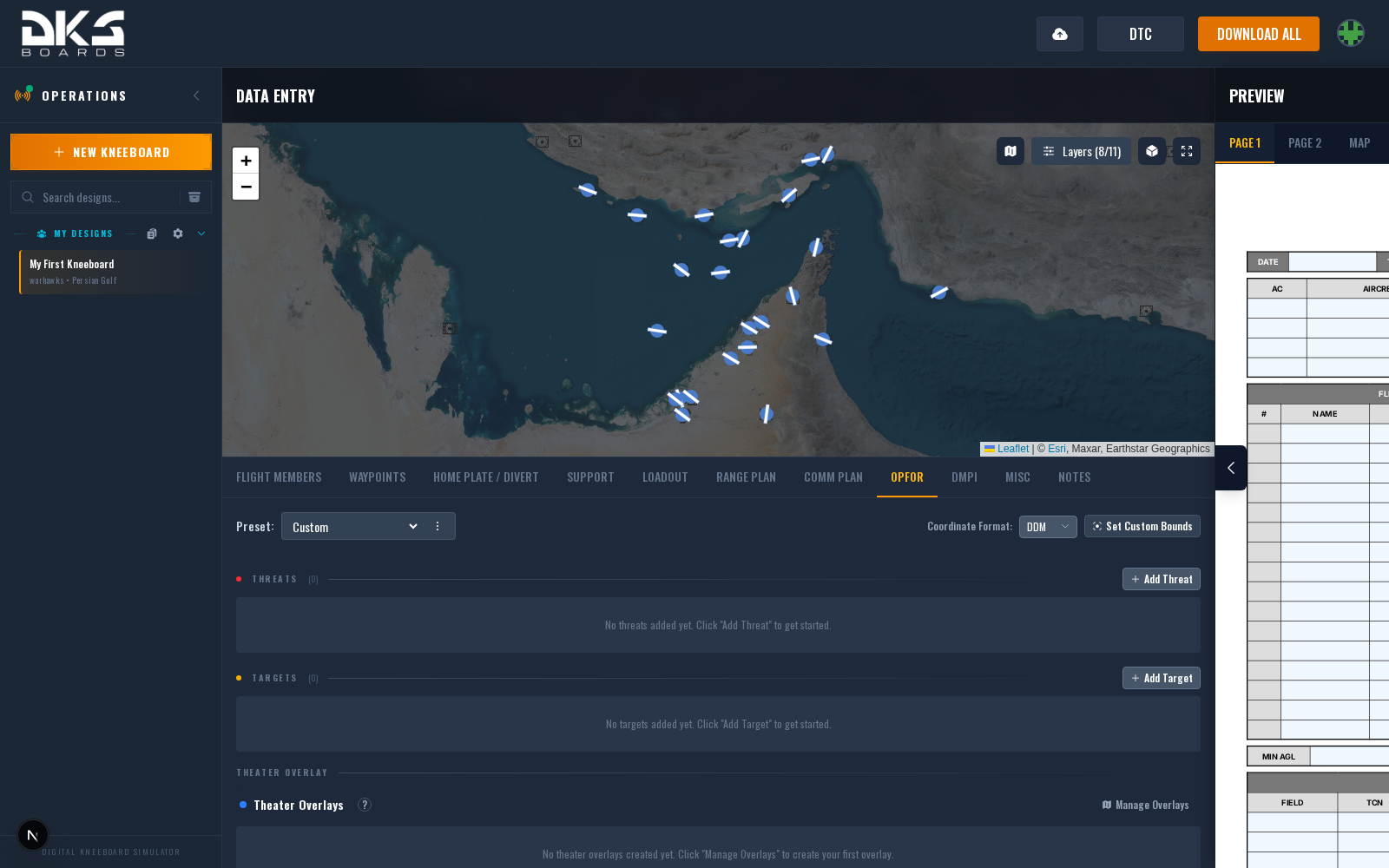
The OpFor tab defines enemy threats and strike targets. This data drives threat rings and target markers on the kneeboard map page, and populates the threats/targets reference tables.
Threats
Threats represent enemy air defense systems (SAMs, AAA) and naval threats. Each threat row has:
| Field | Description | Example |
|---|---|---|
| Show in List | Eye toggle controlling whether this threat appears in the kneeboard reference list. The threat ring still renders on the map regardless. | (toggle) |
| Type | Threat system selected from the built-in database (SAMs, AAA, naval). Changing the type auto-updates the ring radius to the system's default. | SA-11 Buk |
| Ring (nm) | Engagement ring radius in nautical miles. Pre-filled from the threat database but editable. | 20 |
| Latitude / Longitude | Threat position. Enter coordinates directly, click the map pin button to place on the map, or use a location preset. Supports DD, DDM, DMS, and MGRS formats. | N 42° 10.500' / E 042° 38.200' |
| Description | Freeform text describing the threat's location or role. | North of airfield |
Threats render on the map with engagement rings sized to the Ring value.
Targets
Targets represent strike objectives. Each target row has:
| Field | Description | Example |
|---|---|---|
| Type | Freeform target type or identifier. | Bunker |
| Weapon | Planned weapon delivery method or munition. | GBU-31 |
| Latitude / Longitude | Target position. Same placement options as threats: direct entry, map pin, or location preset. Supports DD, DDM, DMS, and MGRS formats. | N 42° 05.300' / E 042° 40.100' |
| Description | Freeform text describing the target. | Primary objective — fuel depot |
Coordinate Format
Use the Coordinate Format dropdown at the top of the tab to switch all coordinate fields between DD, DDM, DMS, and MGRS.
Map Integration
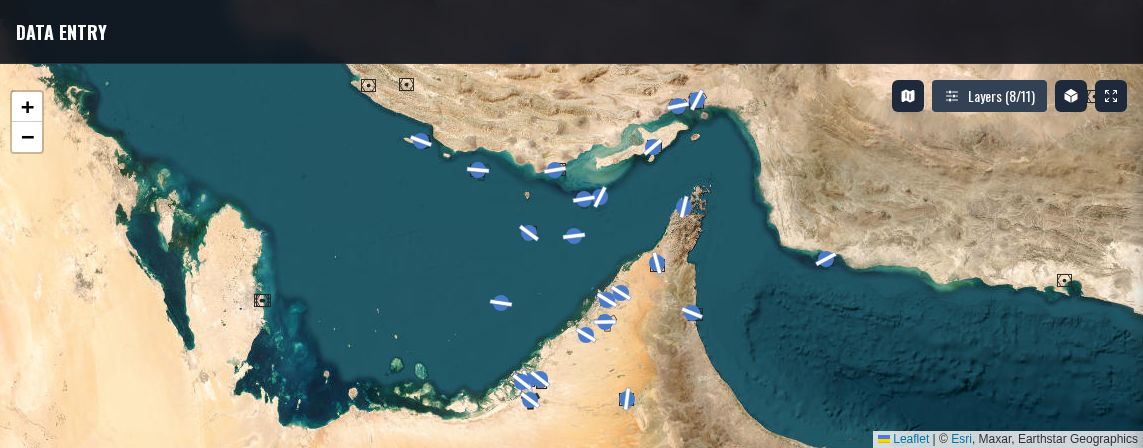
Each threat and target row has a map pin button. Click it, then click the tactical map to place the item. You can also drag placed markers to reposition them. Threat rings draw automatically based on the ring radius. Target markers display with a name label.
A location preset button (grid icon) opens a list of saved locations and existing waypoints, threats, and targets for quick placement.
Theater Overlay Integration
A Theater Overlays section appears below the manual threats and targets whenever you have at least one overlay enabled on this design from Design Settings → Overlays. Overlays are opt-in per design — until you flip the master switch on the settings side, this section stays empty even if the squadron has overlays configured for the theater.
Once enabled, an overlay contributes threats, targets, ground units, friendly air defense, and support assets (tankers, AWACS, carriers) to this section. Each threat and target has two independent checkboxes:
- Active — Whether the item applies to this design. Defaults off. Activating brings the item into the map and exposes description / weapon delivery override fields.
- Kneeboard — Whether the item appears on the printed reference list. Defaults on while the item is Active.
Per-overlay Active and Kneeboard header checkboxes let you bulk-toggle every item in an overlay. Layer visibility checkboxes (Enemy Ground Units, Friendly Ground Units, Friendly Air Defense, Support Assets) appear per overlay when the overlay carries those entities.
You can override the description on an active threat and the description and weapon delivery on an active target without touching the squadron-level overlay — overridden fields show in amber so they're easy to spot. Clear an override by blanking the field.
Overlay positions, types, ring radii, and original descriptions are managed at the squadron level and come from Squadron Settings → Theater Overlays. Per-design toggles, layer visibility, and text overrides are the only local changes available.
See the Theater Overlays page for the full per-design workflow, including how to attach an overlay from Design Settings → Overlays.
Custom Map Bounds
By default, the OpFor map auto-zooms to fit all threats and targets. Click Set Custom Bounds and drag a rectangle on the map to lock the view area. This keeps map framing consistent across missions. While custom bounds are set, the kneeboard's Threat Summary table lists only the threats inside the rectangle, so the table matches what the map shows. Use Clear to revert to auto-zoom and the full threat list.