
Timeline
The Timeline tab provides a Gantt-chart-style visualization of a flight or package. It shows how flights are synchronized, lets you put package flights in your preferred order, and lets you adjust timing by dragging points directly.
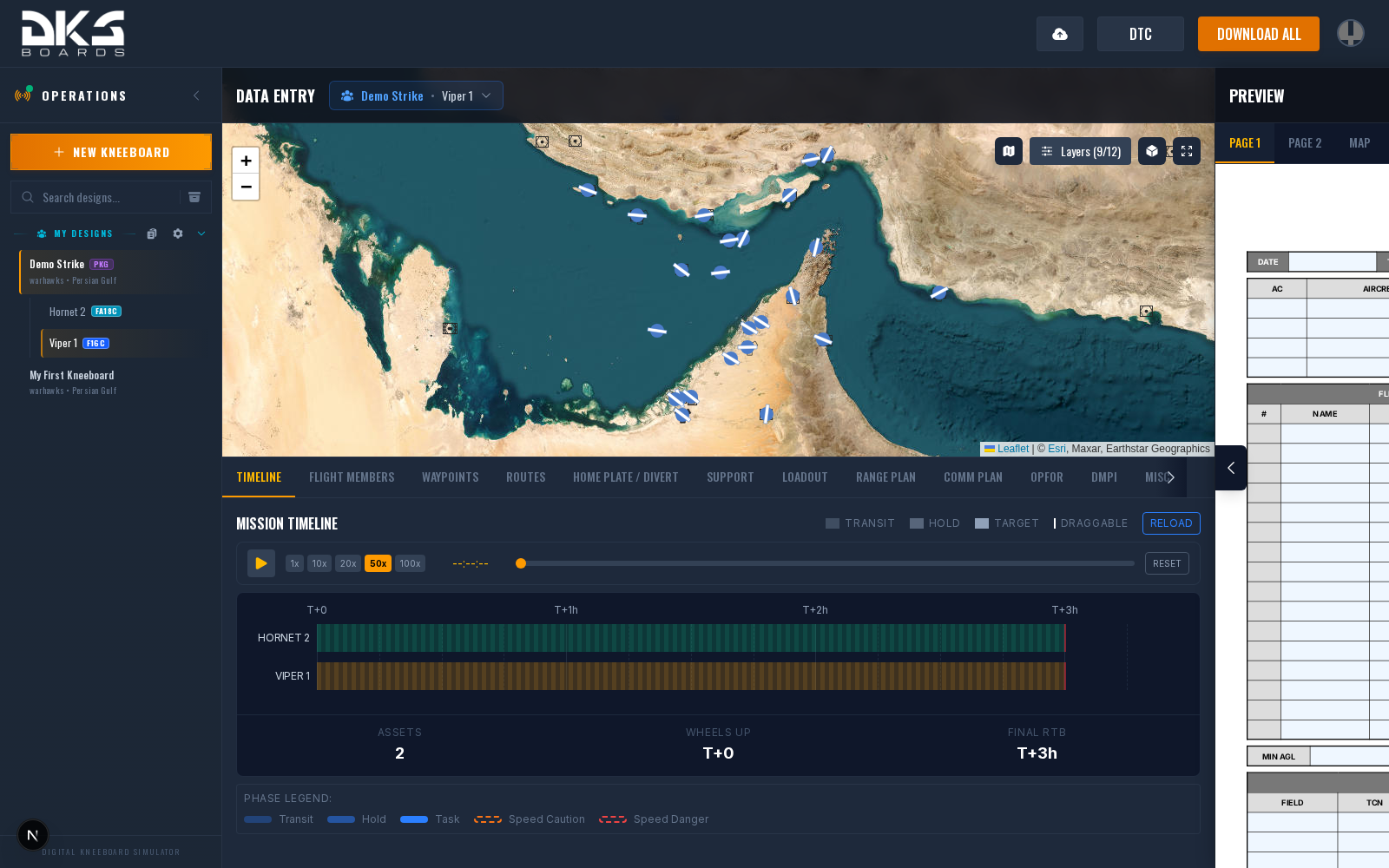
Package timelines show every active flight together. A standalone design gets the same tools for its single flight.
How It Works
The timeline is automatically generated from waypoint data across all flights in the package. It extracts role-based points from each flight's waypoints: takeoff time (from the start point), ingress holds, task start/end, egress holds, and landing. Each flight appears as a horizontal bar with these points marked along a shared time axis.
If a mission start time is set (via the Date/Time fields), the axis shows Zulu times (e.g., 08:30Z). Otherwise it shows relative time (e.g., T+1h30m).
Timeline Points
Each flight bar displays these point types (when present):
- Takeoff -- Derived from the start point's TOT
- Ingress Hold / Push -- From waypoints with the
ingress-holdrole - Task Start / End -- From waypoints with the
taskrole (TOT = start, Push = end) - Egress Hold / Push -- From waypoints with the
egress-holdrole - Landing -- The last waypoint with a TOT value
Segments between points are shaded to indicate phase: transit, hold, or target area. A legend at the top of the timeline explains the shading.
Reorder Package Flights
Drag the grip beside a package flight's callsign up or down to place it where you want it. The order is shared with the package and remains in place when you reopen it. It also becomes the flight order used by package views and output. Each flight keeps its matching color when you move it.
New or reactivated flights appear after your established order until you drag them into place. View-only package members can see the planner's order but cannot change it.
Drag to Adjust
Points with explicitly entered times (not auto-calculated) are draggable. Drag a point left or right to shift its time. Constraints prevent invalid ordering -- for example, you cannot drag a task start past the landing time.
When you release a dragged point, the change is saved to the flight's waypoint data. Other computed times (ETEs, push times) are recalculated automatically.
Zoom
Scroll the mouse wheel over the timeline to zoom in or out (up to 10x). Zoom centers on the cursor position. Click RESET ZOOM to return to the default view.
Mission Playback
The playback bar below the header animates flight positions on the map. Controls include:
- Play / Pause -- Start or stop the animation
- Speed -- Choose from 1x, 10x, 20x, 50x, or 100x (sim-seconds per real-second)
- Scrub slider -- Drag to jump to any point in the mission
- Reset -- Stop playback and clear the playhead
- Callsigns -- Keep every flight name visible on the 2D map
Flight positions are interpolated between waypoints, so you can see where each flight is at any moment.
Real-Time Updates
The timeline polls for flight data every 5 seconds when visible and every 10 minutes in the background. Changes made by other pilots to their flight plans appear automatically.