
Theater Overlays
Theater overlays are squadron-managed libraries of threats, targets, ground units, friendly air defense, support assets, and map drawings, scoped to a specific theater (Persian Gulf, Syria, Caucasus, etc.). You build them once at the squadron level, then selectively attach them to designs on a mission-by-mission basis.
Why Use Overlays
Overlays exist so you can author a complex threat picture — SA-10 belts, IADS nodes, ROE boundaries, known ground orders of battle — in one place and reuse it across designs without re-entering it each time. A squadron can maintain several different overlays for the same theater (e.g. a "daytime posture", "night posture", and "exercise scenario") and pick the right one per mission.
Overlays are not automatic. Creating one only adds it to the squadron library; each design decides which overlays to bring in and which items inside them actually apply. Changes to the overlay content itself do propagate to any design that has it enabled — local descriptions and visibility toggles stay on the design, but positions and types come from the overlay.
Overlays are managed per-theater so a Syria design doesn't pick up Persian Gulf data.
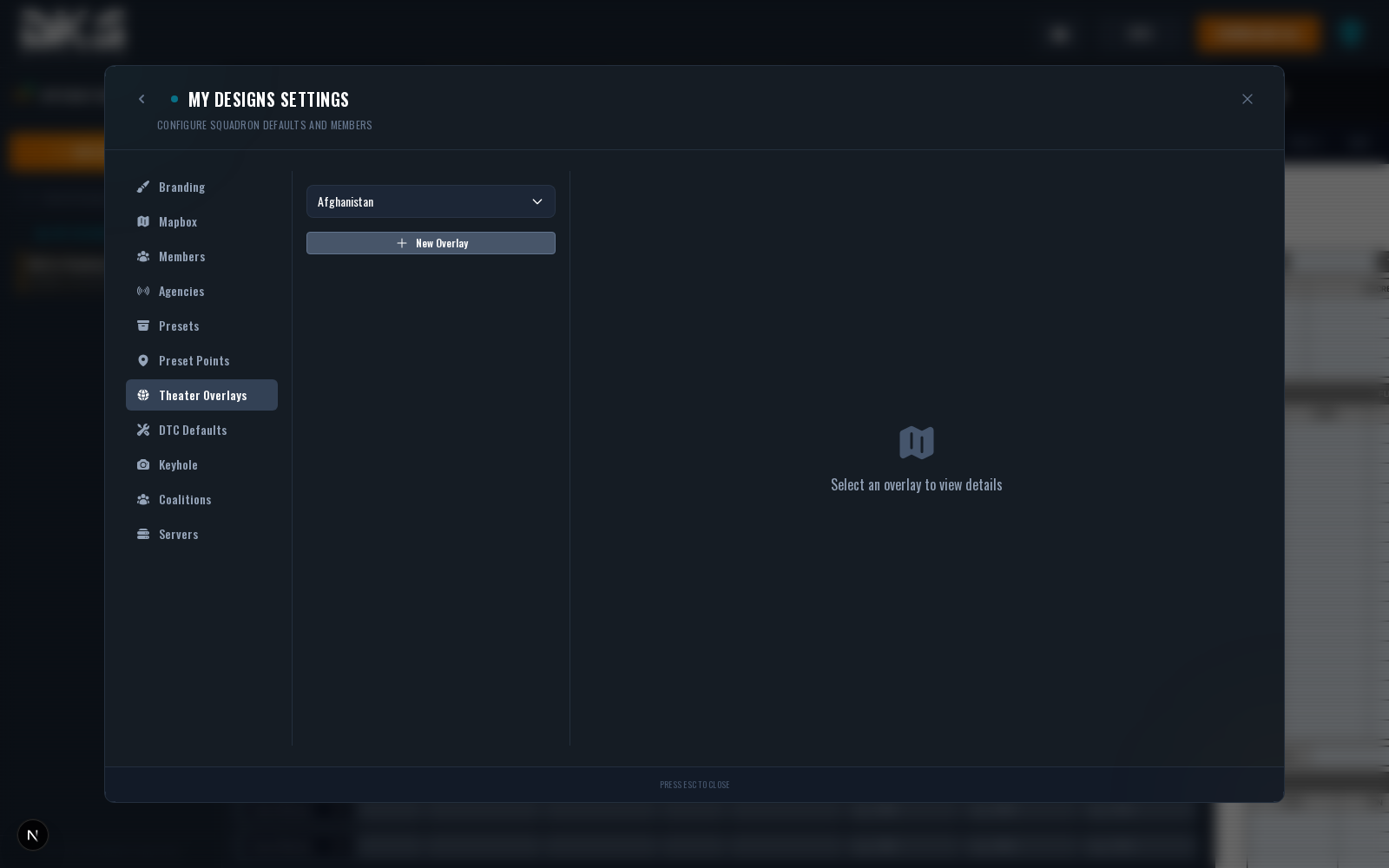
Managing Overlays
Open Squadron Settings → Theater Overlays to manage overlays. Each theater gets its own set of overlays. Within an overlay you can store:
- Threats — Threat points with a type (SAM class, AAA, MANPADS, etc.), coordinates, and an engagement range for ring rendering.
- Targets — Target points with a type, coordinates, description, and weapon delivery notes.
- Ground Units — Named ground and naval unit groups (usually populated from MIZ import) with coalition, category, unit counts, and positions.
- Drawings — Polygons, polylines, text labels, and circle markers for ROE boundaries, engagement zones, phase lines, and named features.
KMZ Import
Overlays can be bulk-imported from KMZ files (the compressed KML format). This is the fastest way to bootstrap an overlay — export your threat picture from Google Earth and upload the KMZ in squadron settings. DKS parses points, lines, and polygons and creates matching overlay entries.
MIZ Import
You can also import threats, targets, ground units, and naval ship groups directly from
a DCS .miz mission file — useful for squadron-built training scenarios where the
ground truth lives in the mission editor. Ground and naval units from MIZ imports
populate the overlay's ground unit groups with coalition and category metadata. Aircraft
carriers still import as support assets so their TACAN, ICLS, and radio details stay
available.
Using Overlays in a Design
Attaching an overlay is a two-step process — once at the Design Settings → Overlays tab to enable the overlay as a whole, and again in the OpFor tab to pick which individual items from it actually apply.
Step 1 — Design Settings → Overlays
Right-click a design and pick Settings → Overlays (or use Mission → Theater Overlays... from the design menu). You'll see every overlay configured for the design's theater listed down the side of a map preview. Every overlay starts disabled for every design.
For each overlay:
- Master switch — Flip the toggle to attach the overlay to this design. Until you do, none of its contents are available in the OpFor tab.
- Drawing controls — Expand an enabled overlay to see its drawings grouped by category (Polygons, Lines, Labels, Points). Toggle whole categories off, toggle individual drawings off, or use Show all / Hide all to bulk-adjust. The map preview on the left updates live.
- Search — Filter the overlay list and drawings by name/label.
- Edit pencil — Jumps straight into Squadron Settings → Theater Overlays with the current overlay pre-selected for editing.
Step 2 — OpFor Tab
Once an overlay is enabled on the design, a Theater Overlays section appears in the OpFor tab underneath the design's own manual threats and targets. Every item inside every enabled overlay is listed with two independent checkboxes:
- Active — Whether the item applies to this design at all. Starts unchecked. Activating a threat or target brings it into the OpFor data, renders it on the tactical map, and exposes editable override fields.
- Kneeboard — Whether the item appears on the printed OpFor reference list. Defaults on once the item is Active, so you can keep something active on the map but hide it from the cheat sheet.
Per-overlay Active and Kneeboard header checkboxes bulk-toggle everything at once.
Threats and targets group under their drawn polygon labels if the overlay has drawings attached; otherwise they appear under an Other heading. Use the search box to filter by type, description, or group.
Per-Design Overrides
For active threats and targets, the OpFor tab lets you edit the description and (for targets) the weapon delivery text without touching the squadron-wide overlay. Overridden fields show up in amber so you can see at a glance which items have been tweaked. Clear an override by blanking the field.
Layer Visibility Toggles
Overlays that carry ground units, friendly air defense, or support assets get per-layer show/hide checkboxes in the Theater Overlays section — e.g. Enemy Ground Units, Friendly Ground Units, Friendly Air Defense, Support Assets. These toggle the layer on the tactical map preview without removing the entities themselves.
What Doesn't Write Back
Positions, types, ring radii, and original descriptions all live on the overlay — edits to those happen in Squadron Settings → Theater Overlays. The only things a design stores are:
- Which overlays are enabled.
- Which drawings inside each overlay are visible.
- Which threats/targets are Active and which ones appear on the Kneeboard.
- Per-item description / weapon delivery overrides.
- Layer visibility toggles for ground units / friendly AD / support assets.
Anything you enter in the design's own OpFor tab (above the Theater Overlays section) stacks on top of the enabled overlay items and is entirely local to that design.
Overlay Drawings
Polygon, polyline, text, and circle-marker drawings (ROE boundaries, engagement zones, named features, range rings) render on the tactical map alongside waypoints and threat rings. Drawings can also be authored in the Drawing Tool if the geometry is mission-specific rather than theater-wide.