
Drawing Tool
The Drawing Tool is a freehand map annotation tool for drawing polygons, lines, rectangles, and text labels on a theater map. Use it to author ROE boundaries, engagement zones, phase lines, corridors, or named features that you want to render on your kneeboards.
Open the tool by navigating directly to /tools/grid-drawing.
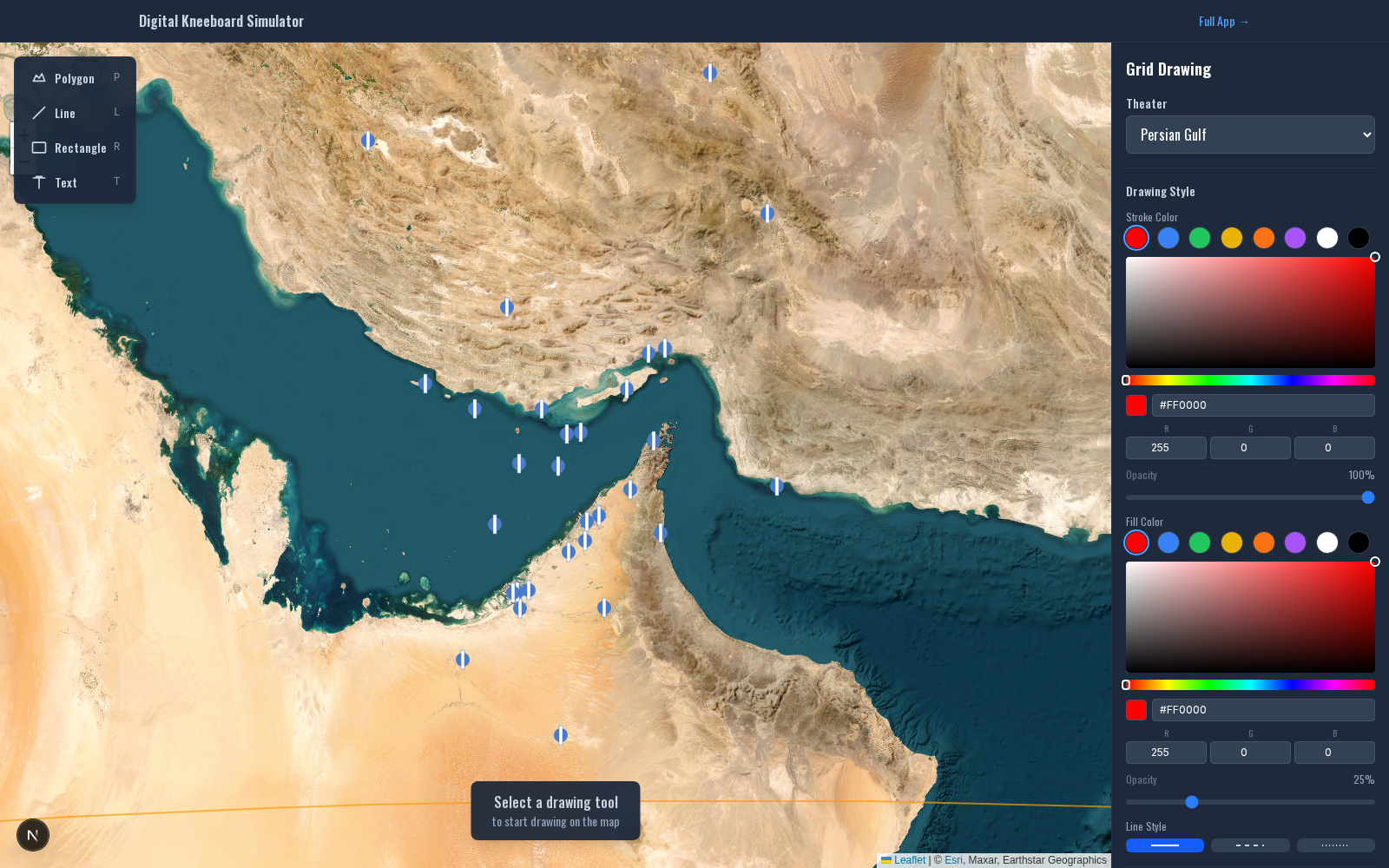
Drawing Tools
Four drawing tools are available from the left-hand palette (with keyboard shortcuts):
- Polygon (P) — Closed shape with filled interior. Use for zones, areas, ROE boundaries.
- Line (L) — Open polyline without fill. Use for phase lines, routes, corridors.
- Rectangle (R) — Axis-aligned box. Stored internally as a polygon, so it edits and styles the same way as a polygon once it's placed.
- Text — Point-anchored text label. Text is a separate drawing type — to put a label on a polygon, drop a text drawing on top of it rather than trying to attach a label to the shape.
The underlying data model also includes circle markers — these can appear from KMZ import but are not drawable from the tool palette.
Styling
The available styles depend on the drawing type:
- Polygon / Rectangle — stroke color, fill color, line style (Solid / Dashed / Dotted), stroke thickness.
- Line — stroke color, line style, stroke thickness. (Polylines don't render a fill.)
- Text — text color, rotation (degrees), minimum zoom level at which the label becomes visible, anchor (center or bottom-left), and the label string itself.
- Circle marker (KMZ-imported only) — stroke color, radius, thickness.
Styles persist with each drawing and can be edited later by selecting the drawing in the sidebar.
KMZ Import
The tool includes a KMZ layer picker for bulk-loading drawings from a KMZ file (compressed KML). This is the fastest way to bootstrap a drawing library if you already maintain your theater graphics in Google Earth — export the KMZ, pick which layers to import, and the tool converts placemarks, paths, and polygons into matching DKS drawings.
The Drawing Tool saves its work in your browser, not on the server. To get drawings onto kneeboards, export them as JSON and import that file into a theater overlay in Squadron Settings → Theater Overlays. For drawings tied to a specific mission, authoring them directly in the theater overlay editor is usually the better place.
Editing Geometry
Click a drawing in the sidebar (or on the map) to select it. While a polygon, line, or rectangle is selected, the tool enables vertex handles — drag a handle to move that vertex, and double-click a vertex to remove it. Right-click a vertex to open a coordinate entry dialog if you want to type the exact position instead of dragging.
Text drawings behave as draggable markers — drag to reposition, and double-click the marker to edit the label string, rotation, and other text-specific options.
Rendering on Kneeboards
Drawings show up on exported kneeboards when the design has the Drawings map layer enabled — toggle it from the design's settings. When the layer is disabled, all drawings are hidden regardless of how the drawings themselves are styled.