
Designs & Template Packs
A design is a single kneeboard set — one mission, one flight. Everything you enter in the data tabs belongs to a design, and everything you export comes from a design.
Creating a Design
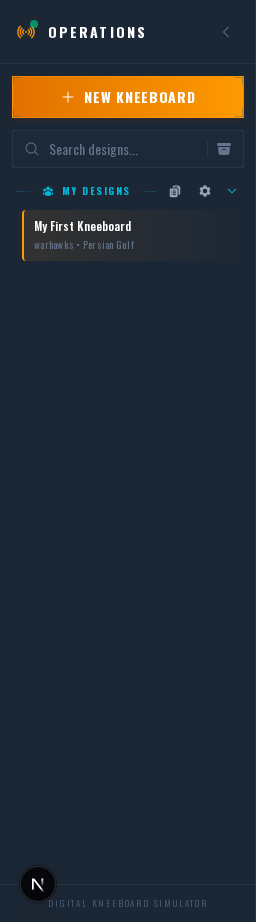
Click + New Kneeboard at the top of the sidebar to open the new design dialog. You pick up front:
- Squadron — Which squadron the design belongs to (if you're in more than one). Every design belongs to exactly one squadron.
- Aircraft — The airframe this kneeboard targets.
- Template pack — The visual layout set used to render the kneeboard.
- Theater — The DCS map the mission is set in.
All of these can be changed later from the design's Settings dialog.
Aircraft & Template Pack
To change the airframe, template pack, or theater of an existing design, right-click it in the sidebar (or hover it and click the three-dot menu that appears), then open Settings → General.
Supported aircraft
F-16C Viper, F/A-18C Hornet, AH-64D Apache, OH-58D Kiowa, AV-8B Harrier, C-130J Hercules, F-14B Tomcat, A-10C Warthog. The selected airframe controls which data tabs appear, which fields are visible, which weapons the Loadout tab offers, and which DTC export is available.
Template packs
- Warhawks — The primary recommended template pack with the full data density. Use this unless you have a reason to pick something else.
- Gamblers — A simplified variant of Warhawks with less data per page.
- Golden Dragons / Milspec — Earlier/in-development packs.
- Squadron templates — Drag-and-drop packs shared with your squadron (built in the Template Builder) also appear in the picker.
Changing the aircraft after you've entered data preserves aircraft-specific fields rather than deleting them — fields that don't apply to the new aircraft are hidden, and reappear if you switch back.
Sidebar & Organization
The sidebar lists every design you have access to, grouped by squadron and folder. Each design row has a hover-activated three-dot menu plus full right-click support — both open the same actions.
Folders
Folders in DKS are really tags displayed as folders — a design can be assigned to at most one folder, and a folder disappears automatically when its last design is removed. You create or move into a folder from the design's right-click menu under Organize → Move to Folder, where you can pick an existing folder or New Folder.... Drag and drop between folders also works.
Search
Type into the search box at the top of the sidebar to filter designs by name.
Packages
Package master designs appear grouped with their child flights; expand a master to reveal the flights it owns. See Package Flights for how packages work.
Context Menu
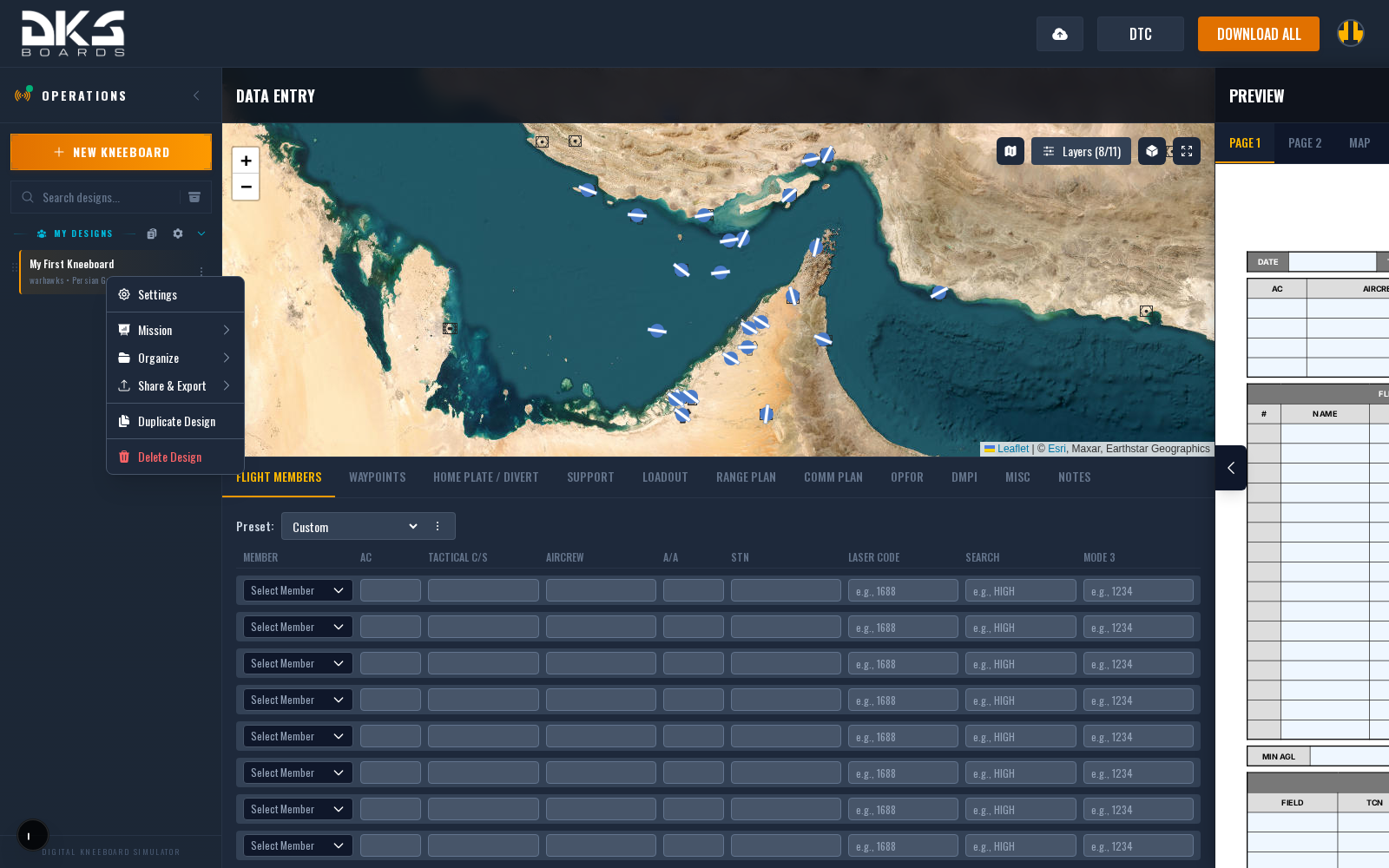
Right-click a design (or click its three-dot menu on hover) to open the design actions:
- Settings — Opens the Design Settings dialog with tabs for General, Maps, Plates, Overlays (squadron designs), and Checkpoints. Aircraft, template pack, theater, watermark, tileset, and coordinate format all live here.
- Mission — Submenu containing Briefing (create/open a briefing for this design), Debrief (open the latest debrief or upload a new ACMI), Vertical Profile (render a side-profile chart of the flight plan), and Theater Overlays... (jump to the overlays tab in Settings).
- Organize — Submenu containing Move to Folder, Convert to Package, Assign Squadron (if you own the design), and Archive / Unarchive.
- Share & Export — Submenu containing Publish Design (or Copy Public URL + Unpublish Design when already published), Export to JSON, Import MIZ..., and Refresh All Presets.
- Duplicate Design — Deep-copies the design including all data.
- Delete Design — Immediate delete with no trash. Use Organize → Archive instead if you want a non-destructive way to hide a design.
Publishing & Sharing
Inside a squadron, every member can already see every design — there's no private toggle. Publishing is only for sharing a read-only view with pilots outside the squadron.
Share & Export → Publish Design generates a public /view/{uuid} URL that anyone can
open — no login required. The public view always reflects the latest saved state of the
source design. Use Copy Public URL to grab the link, and Unpublish Design when
you want to revoke access. The cloud icon in the top-right of the editor is the same
publish button.
Archive
If you want to hide a design without deleting it, use Organize → Archive instead of Delete Design. Archived designs are hidden from the default sidebar view and can be unarchived from the same menu. This is the safe way to retire an old mission.
Checkpoints
Checkpoints snapshot the full form data of a design at a point in time. Create one before a big change (rewriting the route, changing loadouts for a different mission) so you can roll back if needed. Checkpoints live in Settings → Checkpoints.
Checkpoints are not version control — they capture the whole design state, not individual fields. Restoring a checkpoint overwrites current data.