
Presets
Presets are saved snapshots of a single data tab's content. They let you keep a library of commonly-used loadouts, comm plans, divert fields, and more — and load them into any design with one click.
What Can Be Saved
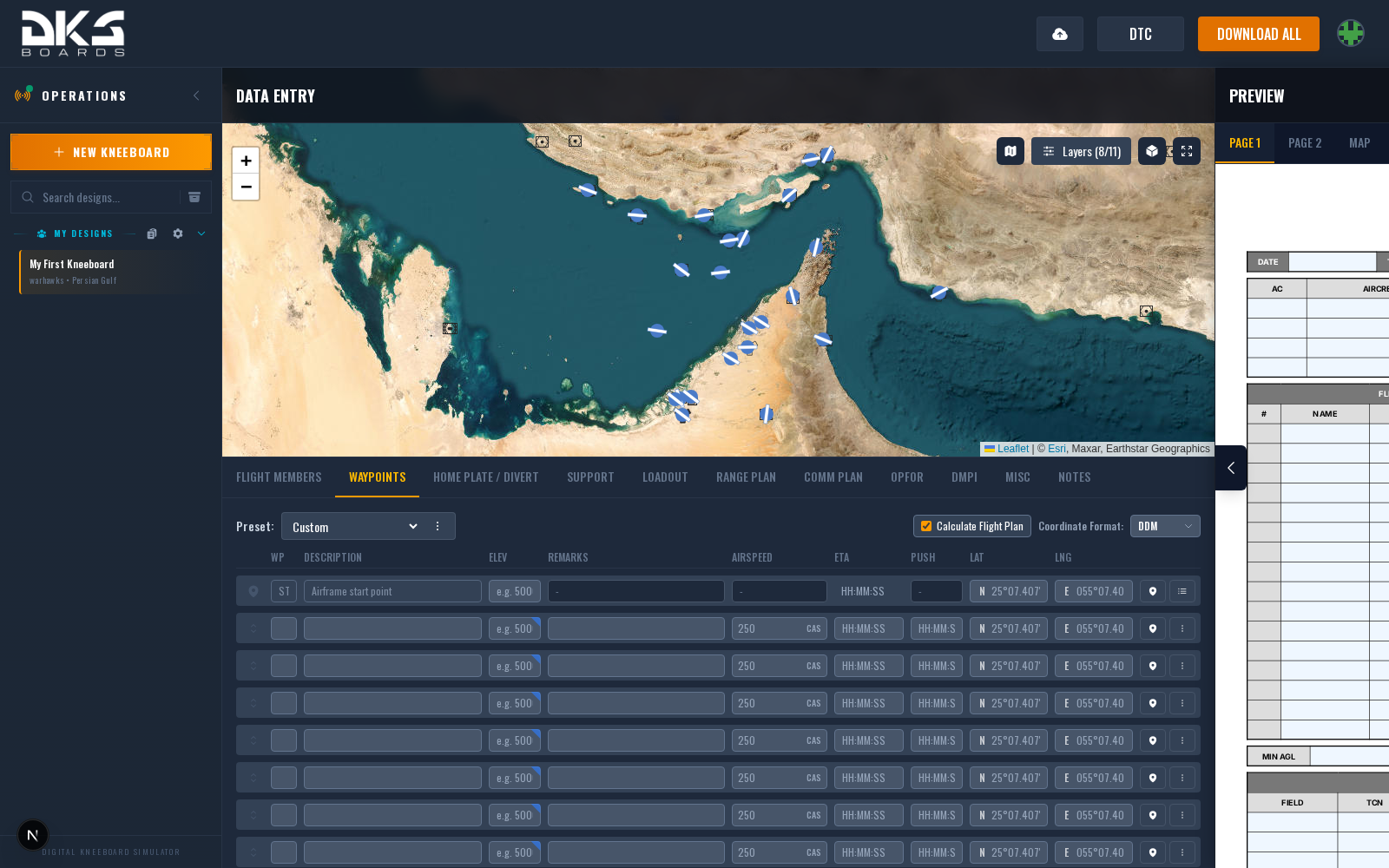
Most data tabs support presets. The preset selector appears at the top of each supported tab:
- Flight Members — Crew rosters with callsigns and tail numbers
- Waypoints — Recurring flight plan routes
- Routes — Advanced mode route definitions
- Home Plate / Divert — Airfield pairs you use regularly
- Support — Tanker / AWACS / carrier asset sets
- Loadout — Aircraft weapon loadouts (own selector, separate from the generic PresetControls on other tabs)
- Range Plan — Range waypoint sets
- Comm Plan — Radio frequency blocks (and Apache comm plan variant)
- OpFor — Threat and target libraries
- Control Measures — Battle positions, FARPs, checkpoints
- Graphics — Reusable lines, areas, corridors, and other map graphics
- Misc — Bullseye, weather, and mission metadata snapshots
Saving a Preset
- Fill in the tab's fields with the data you want to save.
- Open the preset actions menu next to the Preset dropdown at the top of the tab.
- Click Save As... to create a new preset or Save to update the currently loaded preset.
- Enter a name in the Save New Preset (or Update Preset) dialog and confirm.
The preset stores only the fields from that tab — saving a loadout does not capture your waypoints, and vice versa.
Loading a Preset
Pick a preset from the Preset dropdown. The tab's current content is replaced with the preset's data — all existing fields in that section are cleared first, then the preset fields are applied.
Loading a preset overwrites the current tab. If you've made unsaved changes you'd like to keep, save them as a preset first or create a design checkpoint before loading.
The Graphics tab also has a From Presets... button beside Add Graphic. Use it to select several Graphics presets and add all of them without replacing the graphics already on your design. The combined result becomes Custom, so you can edit it freely or use Save As... to keep the combination as a new preset.
Ownership
Every preset belongs to the squadron of the design you're in when you save it. They're visible to everyone in that squadron, and admins can manage them from Squadron Settings.
Preset Points
Separate from tab presets, preset points are a named library of geographic coordinates — airfields, navigation fixes, ranges, landmarks. Use them when entering waypoints or support tracks via the "Location" coordinate format. See Squadron Settings for how to manage your squadron's preset point library.
Duplicating and Sharing
Squadron presets are available to every squadron member automatically. There are two ways to fork a preset:
- Save As... in the preset actions menu on any tab creates a new preset with a different name from the currently loaded data. Use this when you've made tweaks and want to keep both the original and your variant.
- Squadron Settings → Presets exposes a Duplicate button on each preset row that lets you copy it to another squadron you're a member of.