
Contents
DKS ATC (GCI & ATC scope)
DKS ATC is a controller's radar scope for DCS, in the browser. It shows the live air picture of a running mission and helps you work it: as a GCI controller running intercepts, or as an ATC controller working an airfield or a carrier. It needs no install and no license, and it opens straight from your squadron's server.
This section of the manual has nine pages:
| Page | Read it for |
|---|---|
| Overview (this page) | What DKS ATC is, the words it uses, connecting, the screen |
| How-tos | Short recipes: declare a group, hook a BRAA, hand off a track, rewind, and 60 more |
| Reading the Scope | Symbols, names, data blocks, the map, layers, filters, measuring |
| GCI Controlling | Working flights, declarations, groups, the PICTURE, BRAA and the Call deck |
| Airfield & Carrier | ATC mode: runway in use, strips, the approach window, the carrier board |
| Alerts & Squawks | Every alert, how to acknowledge it, SRS squawks and IDENT |
| Positions & Teamwork | Your position and frequency, the shared picture, control, handoffs, point-outs |
| Replay, Rewind & Drills | Recordings, live rewind, drills, scoring and the session debrief |
| Keys, Settings & Data | Every key and gesture, settings, what each data source provides, which north |
What DKS ATC is
Three rules hold everywhere in DKS ATC:
- It is observer only. Nothing is ever sent back to the DCS server, whatever feed or role you connect with. You talk to pilots on SRS or Discord as usual; DKS ATC tells you what to say and to whom.
- It is silent by default. Every alert is visual: a colored frame, a banner card, a log row and a count in the top bar. If you want them, you can turn on short tones for the most urgent alerts in the Log's settings. See Tones.
- It works on Tacview alone. Every feature works on a server's plain Tacview Real-Time Telemetry. The DKS exporter, DCS Olympus, DCSServerBot and SRS each add detail (fuel, airfields, detections, squawks), and DKS ATC says what is missing and why rather than guessing. See Data sources.
DKS ATC has two modes on the same scope. Switch with Alt+M or the GCI / ATC switch in the top bar; each mode remembers its own panels and layers.
| Mode | For | What it puts first |
|---|---|---|
| GCI | Fighter controllers, AWACS, intercepts | Affiliation, groups, the PICTURE, BRAA, threat rings and the Call deck |
| ATC | Tower, approach and carrier controllers | The focused airfield, runway in use, flight strips, the approach window, conflict and terrain alerts |
Use Debrief to replay and analyze a finished recording in 2D and 3D. Use Realview to watch a running mission in 3D. Use DKS ATC to control a running mission, or to rehearse one from a recording or a drill.
Words DKS ATC uses
| Word | Means |
|---|---|
| Feed | The one live source DKS ATC is reading: a server's Tacview or Olympus, a recording or a drill |
| Track | One object on the scope (an aircraft, ship, ground unit or missile) with a track number (TN) that stays with it |
| Group | Hostile, bogey or unknown aircraft flying together, worked as one contact. DKS ATC forms groups itself and names them by where they are |
| Flight | Friendly aircraft flying together under one callsign, such as BROADSIDE 1 |
| Working flight | The friendly flight you are talking to right now. BRAA, bogey dope and the Call deck are worded for it |
| Declaration | What you have said a track is: hostile, bogey, unknown, friend, assumed friend or neutral. DKS ATC never declares hostile on its own |
| Picture | Two meanings: the PICTURE call (every group, in formation order), and which picture your feed shows (coalition, sensors or truth) |
| Position | The controlling position you work, by its radio callsign (DARKSTAR, TOWER), with a role and a frequency |
| Shared session | The picture every controller on the same server, mission and side works together |
Getting connected
Open DKS ATC from Tools → DKS ATC, from Open DKS ATC on a server card in Squadron Settings → Server Integrations, or by going to /tools/atc. The launch screen lists every way in, most likely first.
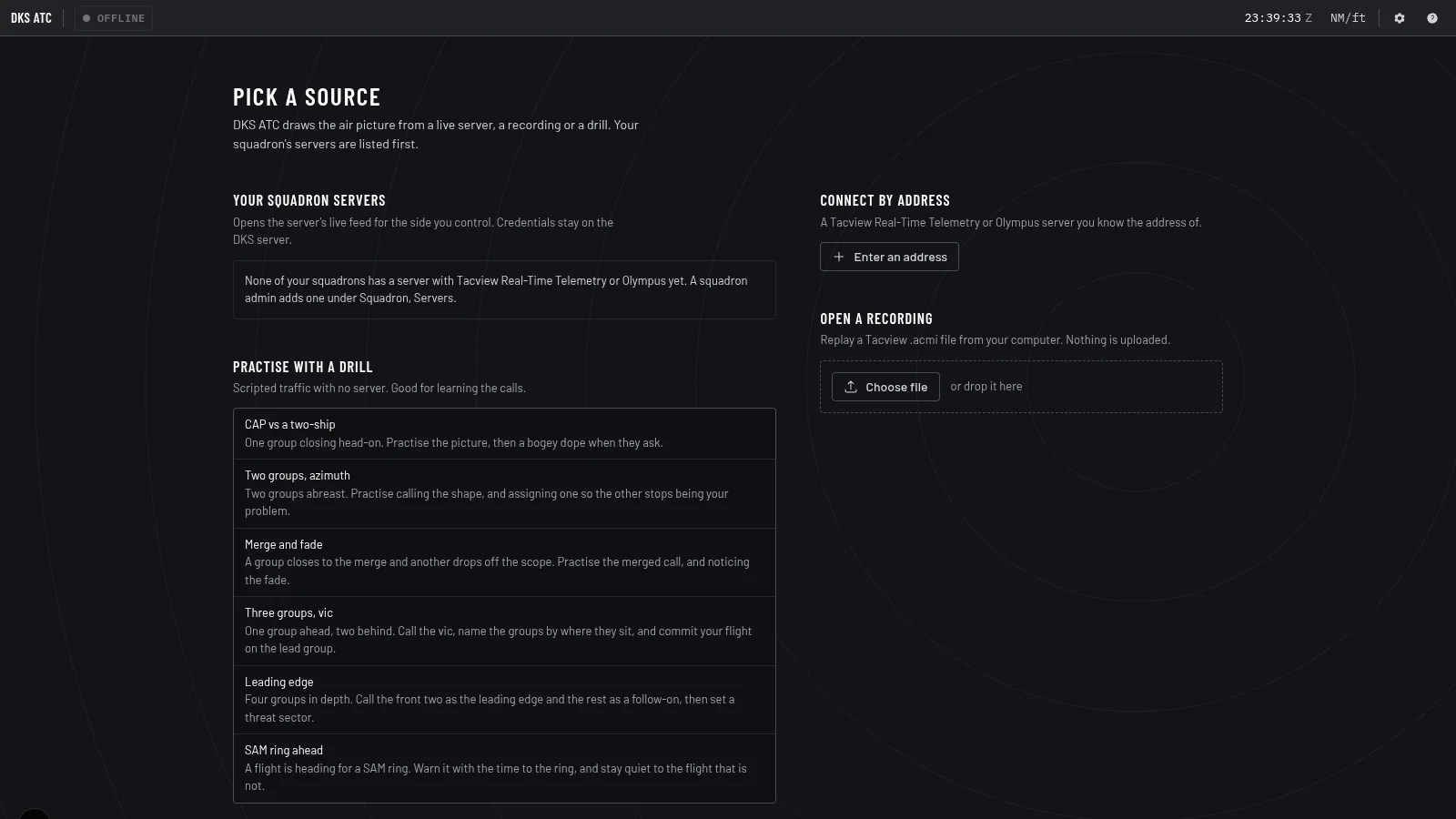
From a squadron server
This is the normal way to control a squadron mission, and the only way to share a picture with other controllers. Your browser never sees the server's address or passwords.
- Under Your squadron servers, pick the Side you are controlling (Blue or Red).
- Pick the Picture:
- Coalition (the default). Your side in full; the other side's positions, types and speeds, without their fuel, stores, routes, drawings or player names.
- Sensors. The other side's aircraft appear only while your side's search radars, ships, AWACS or fighters with their radar on could see them. Unless the server reports detections, DKS ATC models this itself (see The picture you are seeing): line of sight over the terrain, DCS's own radar ranges and scan, the aircraft's size and aspect, and beaming.
- Truth. Everything on both sides. Only squadron owners and admins see this option.
- Click Open on the server.
DKS ATC uses the server's Tacview Real-Time Telemetry if it is enabled, and DCS Olympus otherwise. The side you launched with is locked in the top bar for the session (a Truth launch leaves it free). The page address remembers the server, side and picture, so a reload or a bookmark reopens the same thing, and your browser remembers your last choice for the next launch. A link that names only a server (the Tools menu, a server card) uses that last choice; the first time, it waits on the launch screen with the server highlighted until you pick a side.
For Tacview feeds the coalition and sensor pictures are filtered by the DKS relay before they reach your browser, so another side's private data never arrives. An Olympus feed sends whatever its Olympus role allows (set by the server admin); DKS ATC then only locks your side in the top bar.
If the connection drops, DKS ATC reconnects by itself (every 1 to 30 seconds), fetching a fresh launch ticket each time, so a squadron role you lost meanwhile applies on the next reconnect. A launch that fails shows the server's reason on the launch screen.
By address
Under Connect by address, click Enter an address (or Another address) to connect straight to a server you know:
- Tacview Real-Time Telemetry. Host and port (default 42674), plus the handshake password if the server has one.
- DCS Olympus. Host and port (default 3001), a username and the password for an Olympus role. Any role works, because DKS ATC only reads.
The host can be an IP address, a domain name or an https:// address (for example a
Cloudflare tunnel). Tick Save this connection to list it on the launch screen for a
one-click reconnect. Passwords are never saved to disk: tick Remember the password until
I close the browser to keep one for this browser session. A direct connection shows the
whole feed (truth) and is never shared with other controllers.
A recording
Under Open a recording, click Choose file or drop a Tacview recording (.acmi,
.zip.acmi or .txt.acmi) on the box. Nothing is uploaded. It plays like a live feed
with full playback controls; see Replay, Rewind & Drills.
Recordings are never shared.
A drill
Pick a lesson or drill under Training to work a scripted scenario with no server and no recording. Drills are covered in Replay, Rewind & Drills.
The screen
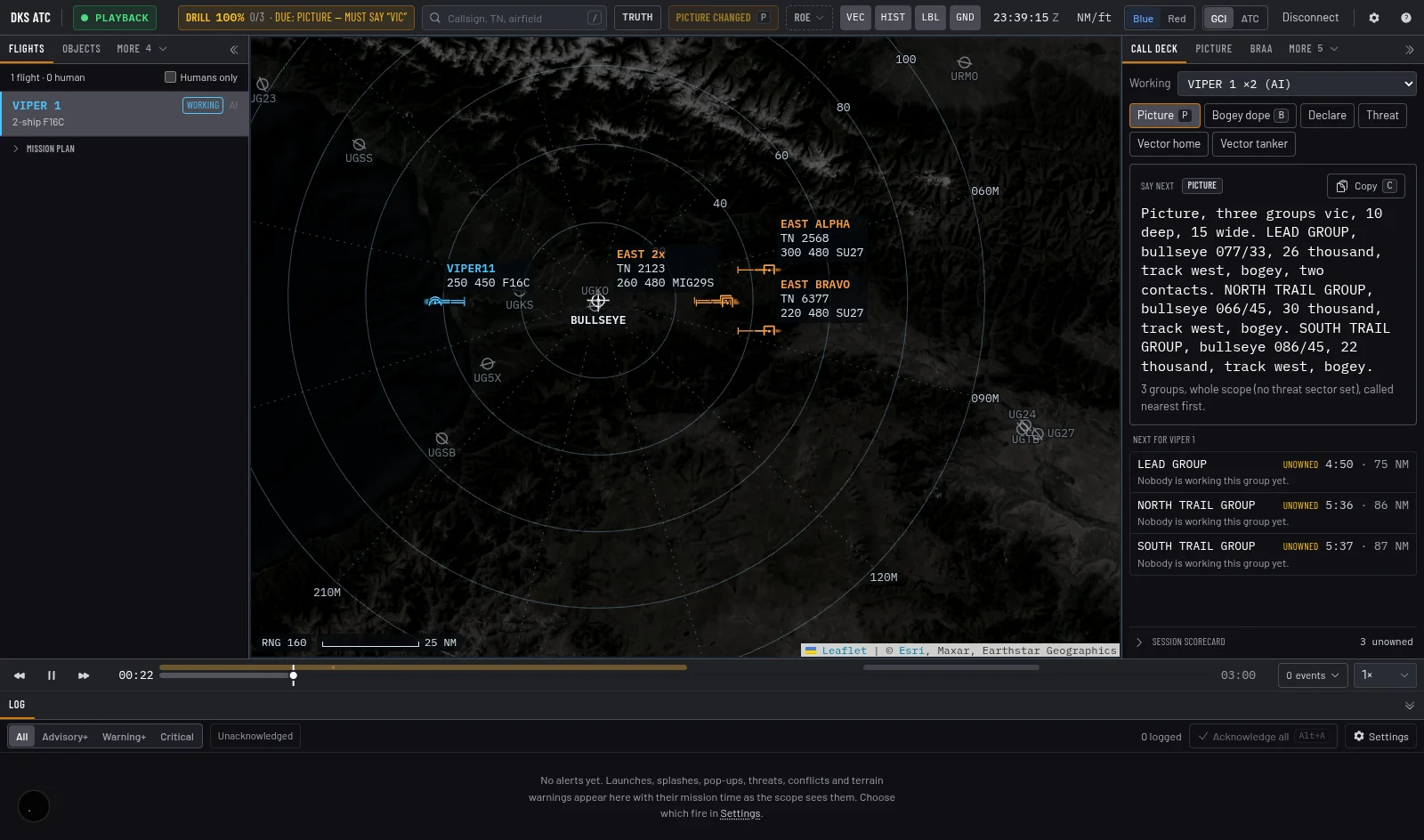
- Top bar. Feed status, the source, the picture badge, the clock, units, the side you control, the GCI / ATC switch, settings and help. Chips appear here when something needs you: alerts, emergency squawks, a waiting handoff, a rewind, a drill score, the shared-session status.
- Scope. The radar picture fills the rest of the window. Panels never cover it; only the scope's own controls float over it.
- Scope controls. The icon column at the scope's bottom left opens Map (basemap, bloom, bullseye, rings, airfields), Layers (what the scope draws) and Filters (which tracks it draws): the same floating menus as RealView and the debrief. A dot on Filters means your filters are hiding or dimming something.
- Cursor readout. The strip above the range and scale chips shows the coordinates under the pointer (click to change format), the ground elevation there, the bearing and range from the bullseye and from your working flight, and the bearing frame. While you measure it also shows the current leg and the total.
- Docks. Panels sit in tabs on the left, the right and along the bottom. Press [ and ] to fold the side docks away, drag their edges to resize, and use More when the tabs do not fit. Every panel also has a command in Ctrl+K ("Show the Draw panel"). Sizes and tabs are remembered per mode.
- Bottom strip. The Log (and in ATC mode the Strips) live in a strip along the bottom. It starts closed; open and close it from the button at its right end.
- Playback row. A fixed row above the bottom strip with play, pause, the scrubber and Back to live, for every source.
| Panel | Where | What it is for |
|---|---|---|
| Flights | Left | Friendly flights with their callsign and players, your working flight, planned flights from a DKS package |
| Objects | Left | Every track, searchable and sortable |
| Draw | Left | Your own lines, areas, circles, CAP orbits, text and reference points |
| NAV GRID | Left | The position-reporting grid |
| Call deck | Right (GCI) | The next call to make, worded and ready to copy |
| Picture | Right (GCI) | The PICTURE call, group by group |
| Brevity | Right (GCI) | Brevity reference |
| BRAA | Right | Every hooked BRAA and the last bogey dope |
| Properties | Right | Everything about the selected track |
| Airfield | Right (ATC) | The focused airfield: runway in use, wind, frequencies |
| Approach | Right (ATC) | The approach window (PAR) for a runway |
| Carrier PAR | Right | The approach window for a carrier deck |
| Deck | Right | The carrier's flight deck from above |
| LSO | Right | The LSO platform camera up the glideslope |
| Radios | Right | SRS players, squawks and frequencies |
| Controllers | Right | Your position, role and frequency; who else is controlling |
| Coordination | Right | Control, handoffs, point-outs and track notes |
| Training | Right | Drill score and the session debrief |
| Feed | Right | What the feed carries and why anything is missing |
| Log | Bottom | Every alert, newest first |
| Strips | Bottom (ATC) | Flight strips for the focused airfield |
| Carrier | Bottom | The carrier board: marshal stack, EATs, passes and grades |
Panels that need data appear when the feed has it (the Carrier board only with a carrier, for example). Below 1,024 px wide the docks open as drawers; below 640 px they open as a bottom sheet over the scope.
Panels in their own window
Drag a panel onto a second monitor: the pop-out button (the arrow out of a box) at the right of a dock's tab bar opens the panel showing in its own browser window. Strips, Approach, Airfield, Carrier, Carrier PAR, Deck, LSO, Radios, Log, Coordination, Picture, Call deck and Brevity can pop out; Ctrl+K has "Pop out the Strips panel" and the like too.
- The window shows the same picture as the main window, at the same moment: live, a recording, a drill or a rewind. Everything you do in it (declare, move a strip, accept a handoff, write a note) counts as done in the main window, so Ctrl+Z there or in the window undoes it, and other controllers see it as yours.
- While a panel is out, its tab shows the same arrow. Click the tab to bring the window to the front; close the window to have the panel back in the dock.
- Each window opens where you left it last time, at the same size.
- Keep the main DKS ATC window open: it is the one connected to the server. If you close or reload it, the other windows keep the last picture, say so at the top, and catch up on their own as soon as the main window is back.
If nothing opens, your browser blocked the window: a notice under the top bar says so. Allow pop-ups for this site (the icon at the end of the address bar), then press Try again in that notice.
A first session
A typical first GCI session from a squadron server:
- Open Tools → DKS ATC, pick your side and Coalition, and click Open on the server.
- Wait for LIVE in the top bar. On a server that delays its Tacview stream the scope says how long until the first picture appears.
- Open Settings → Controllers (the gear in the top bar) and enter your position (for example DARKSTAR), role and frequency, so other controllers and the Radios panel know you.
- In Flights, click the flight you are talking to (or press W over it): that is your working flight.
- Declare what you have identified (F2 hostile over a group), hook a BRAA with Ctrl+right-drag, and copy the Call deck's next call with C.
- Press ? at any time for every key and gesture.